How to wait for page load in Selenium
Browser navigation and application readiness are separate boundaries in Selenium. WebDriver can finish loading the document while client-side code is still adding the control, row, or status that the test needs next, which turns an apparently finished page into a race.
The session's page load strategy determines which document.readyState value navigation waits for. The default normal strategy targets complete, eager returns at interactive, and none returns without blocking; a page-load timeout only bounds that navigation wait.
An explicit wait should target the application-owned marker that represents usable state before the test continues. A delayed orders marker makes both boundaries visible because the document reaches complete before the page signals that its application content is ready.
Steps to wait for page load in Selenium:
- Create page-load-wait.html with a delayed application-ready marker.
- page-load-wait.html
<!doctype html>
<html lang="en">
  <head>
    <meta charset="utf-8">
    <title>Orders</title>
    <script>
      window.addEventListener("load", () => {
        setTimeout(() => {
          const marker = document.createElement("p");
          marker.dataset.testid = "orders-ready";
          marker.textContent = "Orders ready";
          document.body.appendChild(marker);
        }, 500);
      });
    </script>
  </head>
  <body>
    <h1>Orders</h1>
  </body>
</html>
- Create selenium-page-load-wait.py with the initial Selenium session code.
- selenium-page-load-wait.py
from pathlib import Path
import shutil

from selenium import webdriver
from selenium.webdriver.chrome.options import Options
from selenium.webdriver.chrome.service import Service
from selenium.webdriver.common.by import By
from selenium.webdriver.support import expected_conditions as EC
from selenium.webdriver.support.ui import WebDriverWait


options = Options()
options.add_argument("--headless=new")
options.page_load_strategy = "eager"

browser_path = shutil.which("google-chrome") or shutil.which("chromium")
driver_path = shutil.which("chromedriver")
if browser_path:
    options.binary_location = browser_path

service = Service(driver_path) if driver_path else Service()
driver = webdriver.Chrome(service=service, options=options)
try:
The eager strategy makes the browser and application boundaries visible. The default normal strategy fits tests that need every declared page resource before navigation returns.
- Append the navigation section below to selenium-page-load-wait.py.
    driver.set_page_load_timeout(10)
    driver.get(Path("page-load-wait.html").resolve().as_uri())
The pageLoad timeout limits navigation itself. It does not wait for application content added after the document load event.
- Append the document-state wait below to selenium-page-load-wait.py.
    wait = WebDriverWait(driver, 10)
    wait.until(
        lambda browser: browser.execute_script("return document.readyState")
        == "complete",
        "document.readyState did not reach complete",
    )
- Append the application-state wait below to selenium-page-load-wait.py.
    marker = wait.until(
        EC.visibility_of_element_located(
            (By.CSS_SELECTOR, "[data-testid='orders-ready']")
        ),
        "orders page ready marker did not appear",
    )

    print(
        "document:",
        driver.execute_script("return document.readyState"),
    )
    print("application:", marker.text)
A production locator should represent the target page state, such as a route heading, enabled submit button, loaded table row, or status message.
Related: How to use explicit waits in Selenium - Append the driver cleanup below to selenium-page-load-wait.py.
finally:
    driver.quit()
- Run selenium-page-load-wait.py to verify both readiness boundaries.
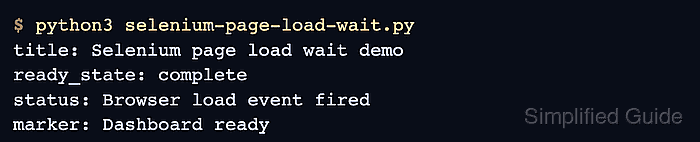
$ python3 selenium-page-load-wait.py
document: complete
application: Orders ready