How to add a host to OpenNebula
OpenNebula hosts are compute nodes that run virtual machines for the cloud. Adding a host registers a prepared KVM node with the front-end so monitoring can collect CPU, memory, and local datastore data before the scheduler places workloads there.
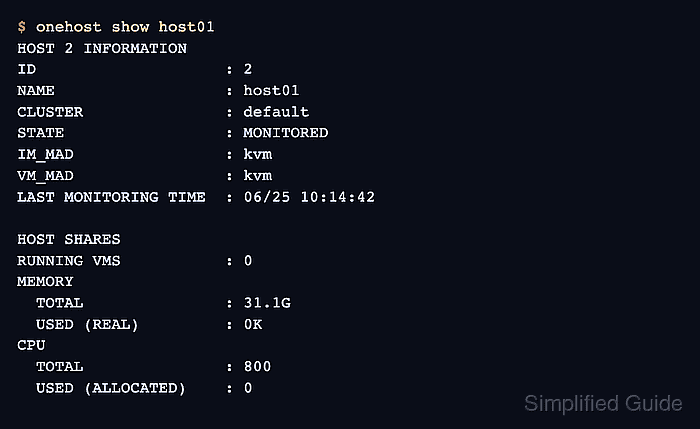
The CLI path uses onehost from the front-end, normally from the oneadmin account. The node should already have the OpenNebula KVM node package, matching network and storage preparation, and passwordless SSH from the front-end because OpenNebula uses that path to run host probes.
Register one node at a time and wait for the host state to move from initial monitoring to on. A host that lands in err usually needs an SSH, name-resolution, package, or remote probe fix before it can provide scheduler capacity.
Related: How to install an OpenNebula KVM node
Related: How to create an OpenNebula cluster
Related: How to monitor an OpenNebula datastore
Steps to add a KVM host to OpenNebula:
- Open a front-end shell as oneadmin.
$ sudo -iu oneadmin
- Test passwordless SSH from the front-end to the prepared node.
$ ssh host01 hostname -f
host01.example.net
Accept a new SSH host key only after comparing it with a trusted console, inventory, or rotation record. OpenNebula uses the same oneadmin SSH path for monitoring and remote operations.
Tool: SSH Key Fingerprint Checker - Register the KVM host.
$ onehost create host01 --im kvm --vm kvm
ID: 2
Use driver names that match the prepared node type. For an LXC node, replace both kvm values with lxc after the LXC node packages and storage path are prepared.
- List the host pool while OpenNebula starts monitoring the new host.
$ onehost list
  ID NAME            CLUSTER     RVM   TCPU   FCPU   ACPU   TMEM   FMEM   AMEM STAT
   2 host01          default       0      -      -      -      -      -      - init
The initial row can show init or update until the first monitor probe returns.
- List the host pool after the first monitoring cycle.
$ onehost list
  ID NAME            CLUSTER     RVM   TCPU   FCPU   ACPU   TMEM   FMEM   AMEM STAT
   2 host01          default       0    800    800    800  31.1G  31.1G  31.1G   on
STAT should become on before the host is trusted for normal VM placement. If it shows err, check /var/log/one/oned.log for SSH, name-resolution, missing remote script, or virtualization probe errors before retrying monitoring with onehost forceupdate host01.
- Inspect the host record.
$ onehost show host01
HOST 2 INFORMATION
ID                    : 2
NAME                  : host01
CLUSTER               : default
STATE                 : MONITORED
IM_MAD                : kvm
VM_MAD                : kvm
LAST MONITORING TIME  : 06/25 10:14:42

HOST SHARES
RUNNING VMS           : 0
MEMORY
  TOTAL               : 31.1G
  USED (REAL)         : 0K
  USED (ALLOCATED)    : 0K
CPU
  TOTAL               : 800
  USED (REAL)         : 0
  USED (ALLOCATED)    : 0

LOCAL SYSTEM DATASTORE #0 CAPACITY
TOTAL:                : 467.7G
USED:                 : 113.5G
FREE:                 : 354.2G
The record should show the expected drivers, monitored CPU and memory, and local datastore data when the transfer mode exposes host-local capacity.