How to configure PHP OPcache for Nextcloud
PHP OPcache keeps compiled PHP bytecode in shared memory, which reduces the parsing work behind every Nextcloud page load and occ run. A missing, disabled, or undersized cache can leave warnings in Administration settings → Overview and makes busy installations spend CPU recompiling scripts instead of serving requests.
Nextcloud needs OPcache in the PHP runtime that handles browser requests, and command-line checks use the PHP binary that runs occ. On Debian and Ubuntu PHP-FPM hosts, those layers normally read separate scan directories such as /etc/php/8.5/fpm/conf.d and /etc/php/8.5/cli/conf.d, so configure both when the same server handles web requests and administrative CLI work.
Nextcloud guidance calls out two behavior boundaries: comments must stay available through opcache.save_comments, and timestamp validation should not be disabled without a restart discipline after every update. Raise cache size values when the admin overview reports high OPcache usage, instead of copying one fixed size across very small and very large installations.
Steps to configure PHP OPcache for Nextcloud:
- Identify the CLI PHP scan directory.
$ php --ini
Configuration File (php.ini) Path: "/etc/php/8.5/cli"
Scan for additional .ini files in: "/etc/php/8.5/cli/conf.d"
Additional .ini files parsed:      /etc/php/8.5/cli/conf.d/10-pdo.ini,
##### snipped #####
Use the PHP version that runs occ. On older hosts the path may be /etc/php/8.3/cli/conf.d or /etc/php/8.4/cli/conf.d.
- Open the matching PHP-FPM OPcache override file.
$ sudoedit /etc/php/8.5/fpm/conf.d/99-nextcloud-opcache.ini
Use the version from the active FPM service, such as php8.5-fpm. If Nextcloud runs through Apache mod_php instead of PHP-FPM, use the Apache SAPI scan directory for that PHP version.
- Add the Nextcloud OPcache settings to the FPM override.
opcache.enable=1
opcache.save_comments=1
opcache.validate_timestamps=1
opcache.revalidate_freq=2
opcache.memory_consumption=192
opcache.interned_strings_buffer=16
opcache.max_accelerated_files=20000
Do not set opcache.validate_timestamps=0 unless every app update, Nextcloud upgrade, and deployed PHP file change is followed by a PHP-FPM or web-server restart. Stale bytecode can keep old application code running.
- Open the matching CLI OPcache override file.
$ sudoedit /etc/php/8.5/cli/conf.d/99-nextcloud-opcache.ini
- Add the same OPcache settings to the CLI override and enable OPcache for CLI runs.
opcache.enable=1
opcache.enable_cli=1
opcache.save_comments=1
opcache.validate_timestamps=1
opcache.revalidate_freq=2
opcache.memory_consumption=192
opcache.interned_strings_buffer=16
opcache.max_accelerated_files=20000
opcache.enable_cli lets occ and CLI setup checks read the same OPcache settings. It does not replace the FPM configuration used by browser requests.
- Test the PHP-FPM configuration.
$ sudo php-fpm8.5 -t
NOTICE: configuration file /etc/php/8.5/fpm/php-fpm.conf test is successful
- Reload PHP-FPM to apply the OPcache settings.
$ sudo systemctl reload php8.5-fpm
Use sudo systemctl reload apache2 instead when Nextcloud runs through Apache mod_php.
- Check OPcache through the CLI PHP runtime.
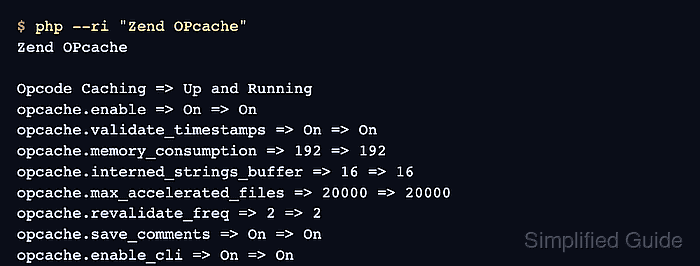
$ php --ri "Zend OPcache"
Zend OPcache

Opcode Caching => Up and Running
opcache.enable => On => On
opcache.validate_timestamps => On => On
opcache.memory_consumption => 192 => 192
opcache.interned_strings_buffer => 16 => 16
opcache.max_accelerated_files => 20000 => 20000
opcache.revalidate_freq => 2 => 2
opcache.save_comments => On => On
opcache.enable_cli => On => On
- Check OPcache through the PHP-FPM runtime.
$ php-fpm8.5 -i
Configuration File (php.ini) Path => /etc/php/8.5/fpm
Additional .ini files parsed => /etc/php/8.5/fpm/conf.d/10-pdo.ini,
##### snipped #####
/etc/php/8.5/fpm/conf.d/99-nextcloud-opcache.ini
##### snipped #####
Zend OPcache

Opcode Caching => Up and Running
opcache.enable => On => On
opcache.validate_timestamps => On => On
opcache.memory_consumption => 192 => 192
opcache.interned_strings_buffer => 16 => 16
opcache.max_accelerated_files => 20000 => 20000
opcache.revalidate_freq => 2 => 2
opcache.save_comments => On => On
- Open the Nextcloud admin overview.
https://cloud.example.com/settings/admin/overview
The overview should no longer show an OPcache warning. If it reports OPcache usage above the warning threshold after normal traffic, raise the matching cache size directive and reload PHP-FPM again.