How to install Netcat on macOS
Installing Netcat on macOS starts with identifying which nc command the shell already runs. Apple includes /usr/bin/nc for common TCP and UDP checks, while Homebrew can add a package-managed GNU netcat build that is easier to inspect, reinstall, and keep aligned with other command-line tools.
The Homebrew formula is named netcat and installs GNU netcat as nc under the active Homebrew prefix. Apple Silicon Macs normally use /opt/homebrew, Intel Macs usually use /usr/local, and migrated shells can expose both prefixes, so the first nc path in PATH matters.
A working Homebrew setup is required before installing the formula. The install is complete when Homebrew records netcat as installed, command -v nc resolves to a Homebrew path, and a verbose TCP probe can open a known test port.
Related: Install Homebrew on macOS
Related: How to test a TCP port with Netcat
Related: How to connect to a TLS service with Ncat
Steps to install Netcat on macOS:
- Confirm that Homebrew is available in the current terminal session.
$ brew --version
Homebrew 5.1.14
If brew is not available, install Homebrew first and then open a new terminal before returning to the Netcat install. Related: Install Homebrew on macOS
- Check which nc command is currently active before installing another one.
$ type -a nc
nc is /usr/local/bin/nc
nc is /usr/bin/nc
nc is /opt/homebrew/bin/nc
The first line is the command the shell runs. /usr/bin/nc is Apple-provided, while /opt/homebrew/bin/nc or /usr/local/bin/nc indicates a Homebrew binary.
- Install the Homebrew netcat formula.
$ brew install netcat
Warning: netcat 0.7.1 is already installed and up-to-date.
To reinstall 0.7.1, run:
  brew reinstall netcat
On a new install, Homebrew downloads the bottle, links the nc binary into its prefix, and prints a successful install message instead of the already-installed warning.
- Confirm that Homebrew records the formula as installed.
$ brew list --versions netcat
netcat 0.7.1
The version changes when Homebrew publishes an updated formula, but the package name stays netcat.
- Confirm the active nc path after installation.
$ command -v nc
/usr/local/bin/nc
The path can be /opt/homebrew/bin/nc on Apple Silicon or /usr/local/bin/nc on Intel and migrated shells. If the command still resolves to /usr/bin/nc, make sure the Homebrew prefix appears before /usr/bin in the shell PATH.
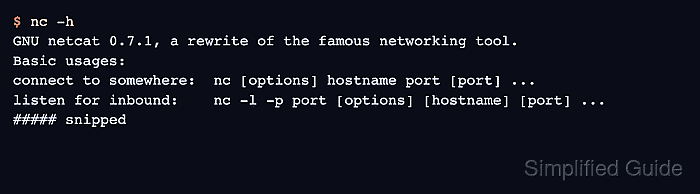
- Check that the active binary reports the GNU netcat help text.
$ nc -h
GNU netcat 0.7.1, a rewrite of the famous networking tool.
Basic usages:
connect to somewhere:  nc [options] hostname port [port] ...
listen for inbound:    nc -l -p port [options] [hostname] [port] ...
##### snipped
Apple's /usr/bin/nc prints a different help screen with Apple-specific options. Keep the path and help output together when reporting which Netcat variant is installed.
- Run a short TCP smoke test with the active nc command.
$ nc -vz scanme.nmap.org 80
scanme.nmap.org [45.33.32.156] 80 (http) open
Use a host and port that are allowed by the local network. For a local-only check, start a temporary listener in another terminal and then connect to 127.0.0.1 with the same nc -vz pattern. Use Nmap Ncat instead when the task requires TLS, proxy support, or Ncat-specific options. Related: How to test a TCP port with Netcat
Related: How to connect to a TLS service with Ncat
Tool: Netcat Command Generator