How to disable and enable Nagios Core service checks
Active service checks in Nagios Core run plugins from the scheduler. Disabling active checks for one service stops Nagios from scheduling that service's plugin while keeping the service visible for status review, comments, downtime, and later re-enablement.
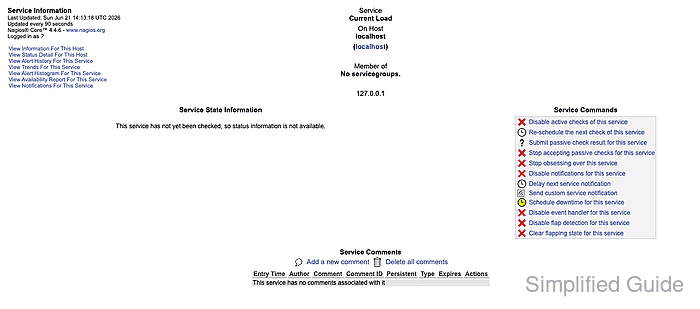
The web interface submits the runtime change through cmd.cgi and the external command file. The current CGI user must be authorized for service commands, and Nagios Core must have external command processing enabled before the scheduler accepts the request.
Use disabled active checks for a narrow case such as a broken plugin, a temporary check target problem, or a controlled test where the service should stay visible but stop running active checks. Use scheduled downtime instead when contacts should see that an outage is planned.
Steps to disable and enable service checks in Nagios Core web interface:
- Open the Nagios Core web interface as a user allowed to submit service commands.
http://monitor.example.net/nagios4/
- Open the service detail page for the service whose scheduled active checks should be paused.
- Confirm the host and service names at the top of the service detail page.
- Locate Service Commands and confirm the command list shows Disable active checks of this service.
The command list shows the inverse action for the current state. Disable active checks means active checks are currently enabled for that service.
Related: How to enable external commands in Nagios Core
Related: How to configure Nagios Core CGI authorization - Click Disable active checks of this service.
- Review Host Name and Service on the command form.
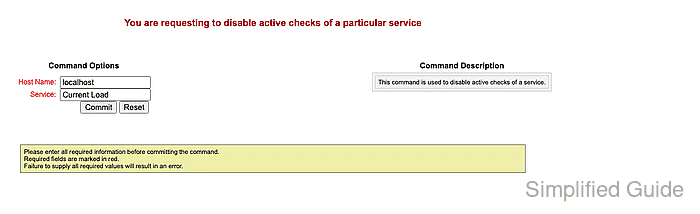
- Click Commit to submit the command.
- Return to the service detail page after the submitted-command message appears.
- Confirm Service Commands now shows Enable active checks of this service.
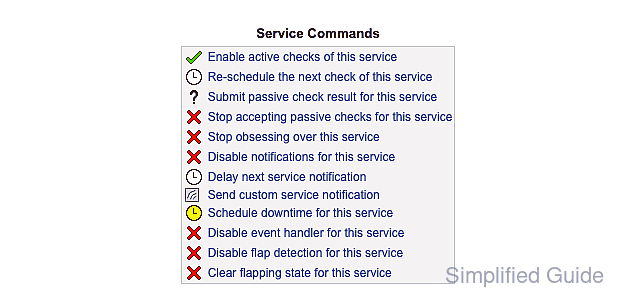
The service can still show its previous state until a passive result is submitted or active checks are enabled and a new check runs.
- Click Enable active checks of this service when scheduled checks should resume.
- Return to the service detail page and confirm Service Commands again shows Disable active checks of this service.
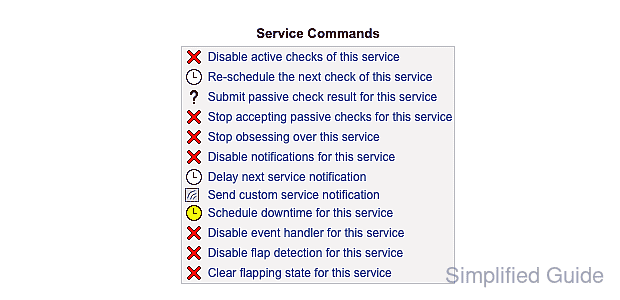
- Reschedule the next active check when a fresh result is needed immediately after re-enabling checks.