How to schedule downtime in Nagios Core
Scheduled downtime in Nagios Core marks a monitored host or service as being in planned maintenance. It is used before package updates, reboots, network work, or other known outages so contacts are not paged for a problem that the operations team already expects.
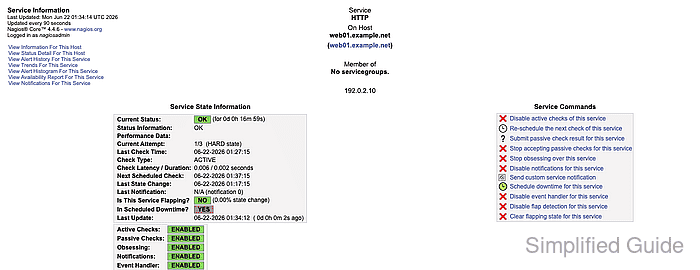
The web interface opens downtime scheduling from the host or service detail page. The request is submitted through cmd.cgi and the external command file, so Nagios Core must have external commands enabled and the current CGI user must be authorized to submit host or service commands.
Fixed downtime starts and ends at the exact times entered in the form. Flexible downtime waits for the host or service to enter a problem state inside the selected window, then keeps the object in downtime for the configured duration. Normal problem notifications are suppressed during the downtime period, while downtime start, end, or cancellation notifications can still be sent when notification options include them.
Steps to schedule service downtime in Nagios Core:
- Open the Nagios Core web interface as a user allowed to submit service commands.
http://monitor.example.net/nagios4/
- Open Service Status Details and select the service that will be under maintenance.
Use the host detail page instead when the whole host needs downtime; the command label changes to Schedule downtime for this host.
- Click Schedule downtime for this service in Service Commands.
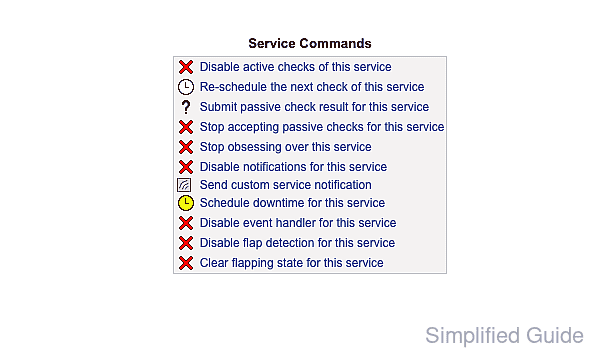
The command link is hidden or rejected when the CGI user cannot submit service commands.
Related: How to enable external commands in Nagios Core
Related: How to configure Nagios Core CGI authorization - Enter a maintenance comment and confirm the Start Time, End Time, Type, and Triggered By fields.
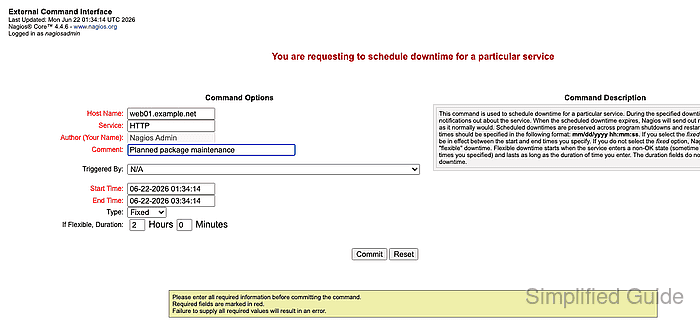
Choose Fixed for a known maintenance window. Choose Flexible when the exact outage start is uncertain but the allowed window and maximum duration are known. Leave Triggered By as N/A unless this downtime should start after another downtime entry begins.
- Click Commit to submit the downtime request.

The success message means cmd.cgi accepted the request for processing; the Downtime page confirms the saved schedule.
- Open Downtime under System.
- Confirm the service appears under Scheduled Service Downtime with the expected comment, start time, end time, and Fixed or Flexible type.
