How to manage MySQL or MariaDB service with systemctl in Linux
Managing the MySQL or MariaDB service with systemctl lets an operator stop database traffic for maintenance, bring the daemon back after recovery work, and confirm that a restart actually returned the server to a running state.
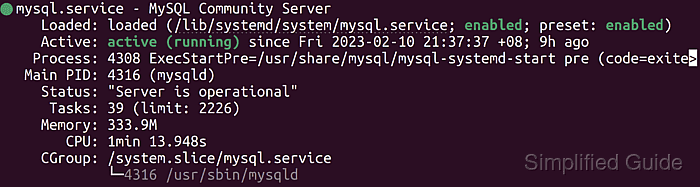
Current Linux packages normally expose the database daemon as a systemd service unit. systemctl controls the live process state with start, stop, restart, and status, while is-active and is-enabled separate the running state from the boot-time startup setting.
The exact unit name depends on the package family. Current MySQL packages use mysql.service on Debian and Ubuntu systems and mysqld.service on RPM-based systems, while current MariaDB packages use mariadb.service and can also provide mysql.service or mysqld.service aliases. Some MariaDB deployments use systemd socket activation, so an active mariadb.socket can start mariadb.service again when a client connects.
Steps to manage MySQL or MariaDB service with systemctl in Linux:
- Identify the installed database service unit before changing service state.
$ systemctl list-unit-files mysql.service mariadb.service mysqld.service
UNIT FILE       STATE   PRESET
mariadb.service enabled enabled
mysql.service   alias   -
mysqld.service  alias   -

3 unit files listed.
Use the real service unit shown on the left in the rest of the commands. Prefer the unit whose state is not alias when more than one name appears.
- Review the service status before a stop, start, or restart.
$ systemctl status mariadb.service --no-pager
● mariadb.service - MariaDB 11.8.6 database server
     Loaded: loaded (/usr/lib/systemd/system/mariadb.service; enabled; preset: enabled)
     Active: active (running) since Sat 2026-06-06 20:50:51 UTC; 1min 20s ago
       Docs: man:mariadbd(8)
             https://mariadb.com/kb/en/library/systemd/
   Main PID: 1494 (mariadbd)
     Status: "Taking your SQL requests now..."
      Tasks: 10 (limit: 94614)
     Memory: 140.9M (peak: 143.3M)
        CPU: 703ms
##### snipped #####
Replace mariadb.service with mysql.service or mysqld.service when that is the real unit on the host.
- Stop the database service when the server must stop accepting connections.
$ sudo systemctl stop mariadb.service
Stopping the service drops active sessions and interrupts applications until the daemon starts again.
If mariadb.socket is active for socket activation, a new client connection can start mariadb.service again. Stop the socket as well when the database must stay down for maintenance.
- Confirm that the service is no longer running.
$ systemctl is-active mariadb.service
inactive
- Start the database service after maintenance or recovery work.
$ sudo systemctl start mariadb.service
- Restart the database service when a configuration, environment, or package change needs a full daemon restart.
$ sudo systemctl restart mariadb.service
A restart disconnects clients while the server process exits and starts again.
- Confirm that the service is active after the start or restart.
$ systemctl is-active mariadb.service
active
Common is-active results include active, inactive, activating, and failed.
- Read recent unit logs when the service fails, exits unexpectedly, or does not return to active.
$ sudo journalctl --unit=mariadb.service --no-pager --lines=20
Use the same unit name discovered earlier. The service journal usually shows the last permission error, missing file, unsupported option, port conflict, or socket problem before the final failure state.
- Disable automatic startup at boot when the database should not start after the next reboot.
$ sudo systemctl disable mariadb.service
Synchronizing state of mariadb.service with SysV service script with /usr/lib/systemd/systemd-sysv-install.
Executing: /usr/lib/systemd/systemd-sysv-install disable mariadb
Removed '/etc/systemd/system/multi-user.target.wants/mariadb.service'.
Use disable --now instead when the service should also stop immediately.
- Confirm the disabled boot-time state.
$ systemctl is-enabled mariadb.service
disabled
- Enable automatic startup at boot when the database should start with the host.
$ sudo systemctl enable mariadb.service
Synchronizing state of mariadb.service with SysV service script with /usr/lib/systemd/systemd-sysv-install.
Executing: /usr/lib/systemd/systemd-sysv-install enable mariadb
Created symlink '/etc/systemd/system/multi-user.target.wants/mariadb.service' → '/usr/lib/systemd/system/mariadb.service'.
Use enable --now instead when the service should also start immediately.
- Confirm the enabled boot-time state.
$ systemctl is-enabled mariadb.service
enabled
Common is-enabled results include enabled, disabled, alias, static, and masked.