How to install MySQL client on Windows
Installing the classic MySQL command-line client on Windows 11 gives you a fast way to reach remote database servers for ad-hoc SQL, scripted checks, exports, and troubleshooting without setting up a full local server instance.
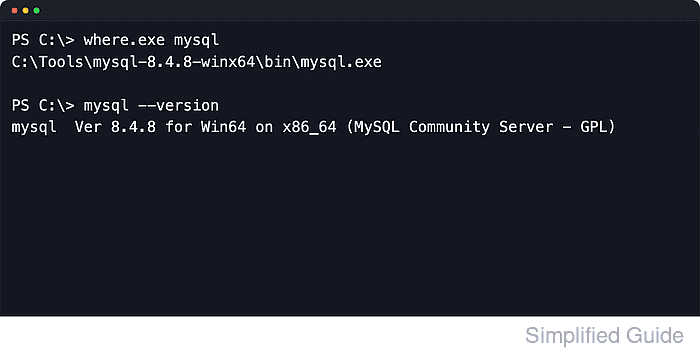
Oracle ships mysql.exe inside the MySQL Community Server Windows packages. The current downloads page offers both a product-specific .msi and a ZIP Archive for Microsoft Windows, but the ZIP Archive is the cleaner client-only path because it provides the classic client binaries without pushing you through local server configuration.
The Windows build is 64-bit only and depends on the Microsoft Visual C++ runtime. Adding the extracted bin directory to PATH makes mysql, mysqladmin, and mysqldump available in new terminals, but edit PATH carefully because removing existing entries can break other applications, and use the full path instead when the machine intentionally keeps multiple MySQL versions.
Steps to install MySQL client on Windows:
- Open the MySQL Community Server downloads page in a browser.
https://dev.mysql.com/downloads/mysql/
- Select the current MySQL LTS release, choose Microsoft Windows, and download the Windows (x86, 64-bit), ZIP Archive package.
Oracle currently lists MySQL Community Server 9.7.0 LTS by default with files like mysql-9.7.0-winx64.zip; skip the debug-test archive. Use the ZIP Archive when you need the classic mysql.exe client without configuring a local server. Use the 8.4 LTS line instead only when the workstation must match an existing 8.4 server estate.
- Download the latest supported Microsoft Visual C++ Redistributable for x64.
https://learn.microsoft.com/en-us/cpp/windows/latest-supported-vc-redist?view=msvc-170
MySQL 9.7 requires the Microsoft Visual C++ 2019 Redistributable on Windows, and Microsoft now ships that runtime family through the current supported v14 package.
- Run vc_redist.x64.exe and complete the installation.
- Extract the MySQL ZIP Archive to a permanent folder such as C:\Tools\mysql-9.7.0-winx64.
Avoid leaving the archive under Downloads or another temporary path if you plan to add MySQL to PATH.
- Open the extracted folder and confirm the bin subdirectory contains mysql.exe.
- Open Edit the system environment variables from the Start menu.
- Click Environment Variables in System Properties.
- Select the user Path variable and click Edit.
Change the system Path only when every user on the machine needs MySQL and you have permission to make system-wide changes.
- Click New and add the full path to the extracted bin directory, such as C:\Tools\mysql-9.7.0-winx64\bin.
Do not replace existing Path entries. If the machine intentionally keeps multiple MySQL versions, skip the PATH change and run mysql.exe by full path instead.
- Click OK until all environment variable dialogs close.
- Open a new Windows PowerShell session.
- Verify that mysql resolves from PATH.
PS> where.exe mysql
C:\Tools\mysql-9.7.0-winx64\bin\mysql.exe
If where.exe mysql returns nothing, close and reopen the terminal before testing again.
- Confirm the client version.
PS> mysql --version
mysql  Ver 9.7.0 for Win64 on x86_64 (MySQL Community Server - GPL)
- Connect to the remote MySQL server with the host, port, and account you intend to use.
PS> mysql --host=db1.example.net --port=3306 --user=db_admin --password
Enter password: ********
Welcome to the MySQL monitor.  Commands end with ; or \g.
Your MySQL connection id is 12
Server version: 9.7.0 MySQL Community Server - GPL

mysql>
Avoid --password=secret on the command line because it can leak through console history or process inspection.
Add --ssl-mode=REQUIRED when the server should refuse unencrypted client connections.
- Run a simple query to confirm the session works.
mysql> SELECT VERSION();
+-----------+
| VERSION() |
+-----------+
| 9.7.0     |
+-----------+
1 row in set (0.00 sec)
- Exit the mysql client.
mysql> exit
Bye