How to test TCP port connectivity in Windows
Testing whether a remote TCP port opens from a Windows system helps separate service reachability problems from name-resolution, firewall, and application issues. It is a quick way to confirm whether traffic can complete a basic TCP connection before spending time on higher-level troubleshooting.
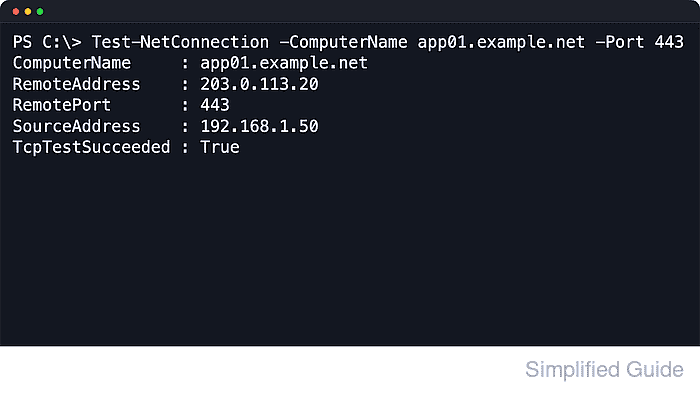
Windows includes the PowerShell cmdlet Test-NetConnection for network diagnostics. When run with -Port, it resolves the target name, attempts the TCP connection, and reports details such as the remote address, local interface, source address, and whether the handshake succeeded in the TcpTestSucceeded field.
A successful test proves only that the remote host accepted a TCP session on that port. It does not confirm application authentication, protocol negotiation, or UDP reachability, and a failed result can still be caused by DNS, routing, firewall policy, or the service listening on a different address or port. Using an IP address instead of a hostname avoids name-resolution variables when needed.
Steps to test TCP port connectivity in Windows with Test-NetConnection:
- Open Windows PowerShell from the Start menu search.
Administrator privileges are not required for a basic Test-NetConnection port test.
- Test the remote host and port, replacing the example hostname and port with the actual target.
PS C:\> Test-NetConnection -ComputerName app01.example.net -Port 443

ComputerName     : app01.example.net
RemoteAddress    : 203.0.113.20
RemotePort       : 443
InterfaceAlias   : Ethernet
SourceAddress    : 192.168.1.50
TcpTestSucceeded : True
TcpTestSucceeded : True means the target accepted a TCP connection on that port from the current Windows system.
- Review the remote address, interface alias, and source address in the result to confirm the expected path is being used.
Testing by hostname confirms both name resolution and TCP reachability in a single command.
- Run the test with detailed output when DNS or routing might be part of the problem.
PS C:\> Test-NetConnection -ComputerName app01.example.net -Port 443 -InformationLevel Detailed

ComputerName          : app01.example.net
RemoteAddress         : 203.0.113.20
RemotePort            : 443
NameResolutionResults : 203.0.113.20
InterfaceAlias        : Ethernet
SourceAddress         : 192.168.1.50
NetRoute (NextHop)    : 192.168.1.1
TcpTestSucceeded      : True
Detailed output adds name-resolution and route-selection information that helps explain which interface and next hop Windows chose.
- Use quiet output when only a pass/fail answer is needed.
PS C:\> Test-NetConnection -ComputerName app01.example.net -Port 443 -InformationLevel Quiet
True
Quiet returns only True or False, which is useful in repeated checks and PowerShell scripts.
- Test by IP address when the goal is to skip DNS and probe only the TCP path.
PS C:\> Test-NetConnection -ComputerName 203.0.113.20 -Port 443
- Use a named common port for supported services instead of typing the number.
PS C:\> Test-NetConnection -ComputerName app01.example.net -CommonTCPPort RDP

ComputerName     : app01.example.net
RemoteAddress    : 203.0.113.20
RemotePort       : 3389
InterfaceAlias   : Ethernet
SourceAddress    : 192.168.1.50
TcpTestSucceeded : True
CommonTCPPort accepts HTTP, RDP, SMB, and WINRM.
- Confirm a blocked or closed port returns a failed result.
PS C:\> Test-NetConnection -ComputerName app01.example.net -Port 81

ComputerName     : app01.example.net
RemoteAddress    : 203.0.113.20
RemotePort       : 81
InterfaceAlias   : Ethernet
SourceAddress    : 192.168.1.50
TcpTestSucceeded : False
TcpTestSucceeded : False means the TCP session did not open. Common causes include a stopped service, the wrong port number, firewall filtering, upstream access controls, or a service bound to a different address.