How to add a folder to the PATH environment variable in Windows
Adding a folder to the PATH environment variable makes command-line tools runnable from any working directory without typing full executable paths. A correctly configured PATH simplifies scripting, build steps, and day-to-day terminal work by keeping common commands consistently available.
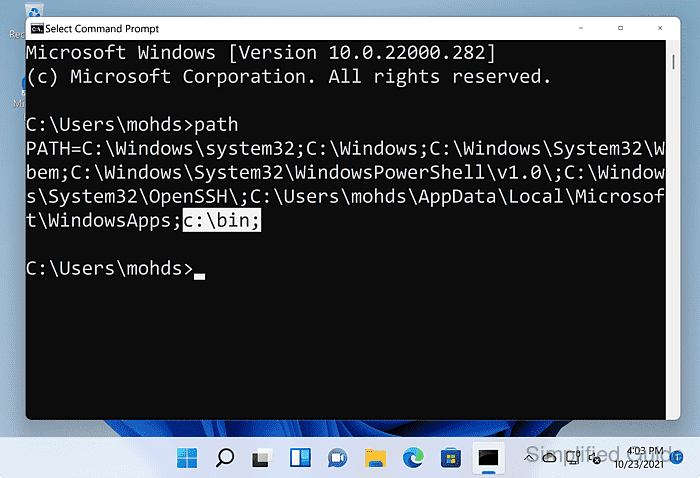
On Windows, executable lookup checks the current directory and then searches each directory listed in PATH in order. The Environment Variables editor maintains separate values for User variables and System variables, and new processes inherit updated values only after the change is saved.
Incorrect edits can change which executable runs for a given command name or break tools that depend on existing entries. Prefer adding trusted directories only, avoid deleting or overwriting current entries, and reopen terminal sessions after changes so new processes load the updated PATH.
Steps to add a folder to the PATH environment variable in Windows 11:
- Open Edit the system environment variables from the Windows search results.
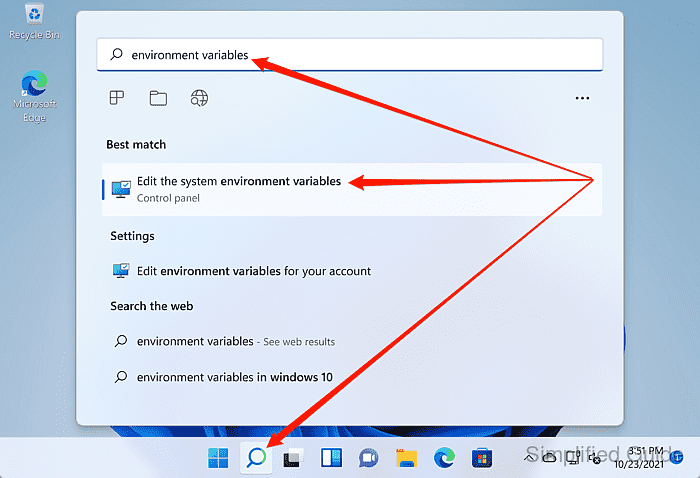
The search shortcut opens the System Properties dialog used for editing PATH.
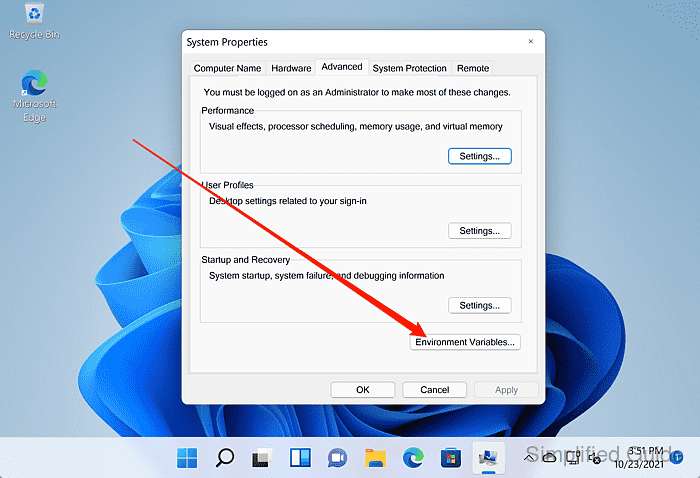
- Click the Environment Variables button in the Advanced tab.
- Select Path under User variables for a per-user change or under System variables for a system-wide change.
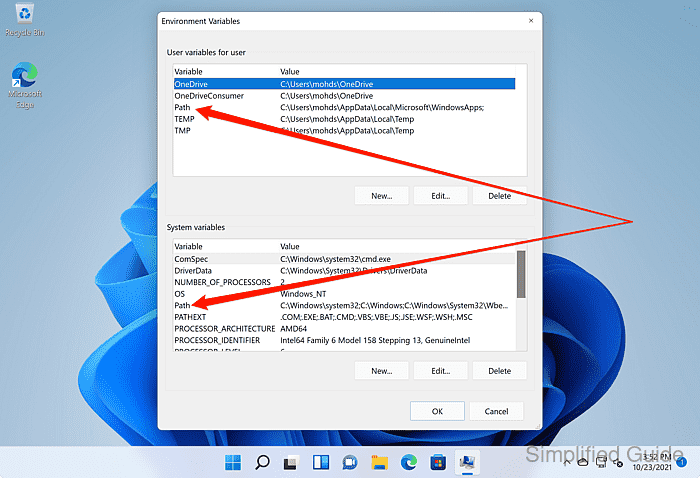
Editing the system-wide Path typically requires administrator permission and affects all users.
- Click the Edit button to open the Path editor.
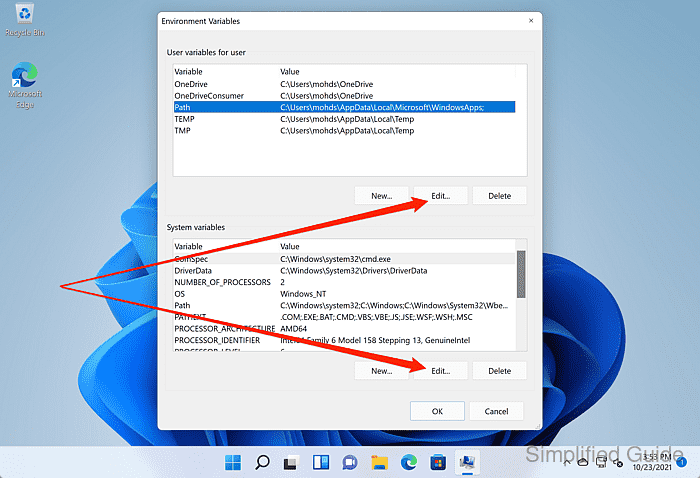
Removing or overwriting existing entries can break built-in commands and installed applications.
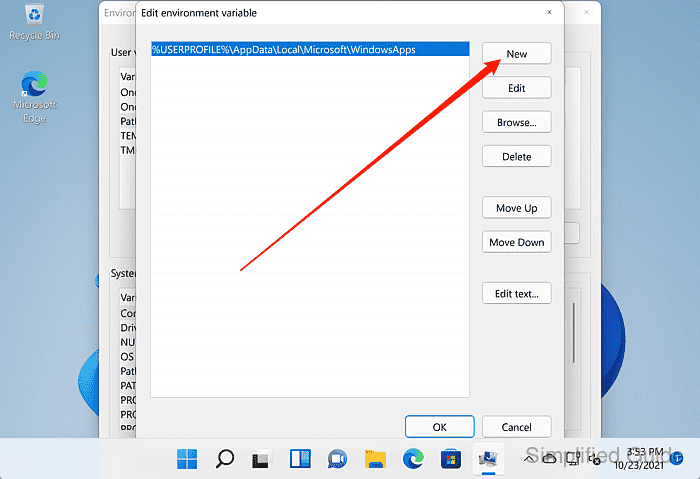
- Click the New button to add a blank entry to the list.
- Enter the full folder path that contains the executables to expose via PATH.
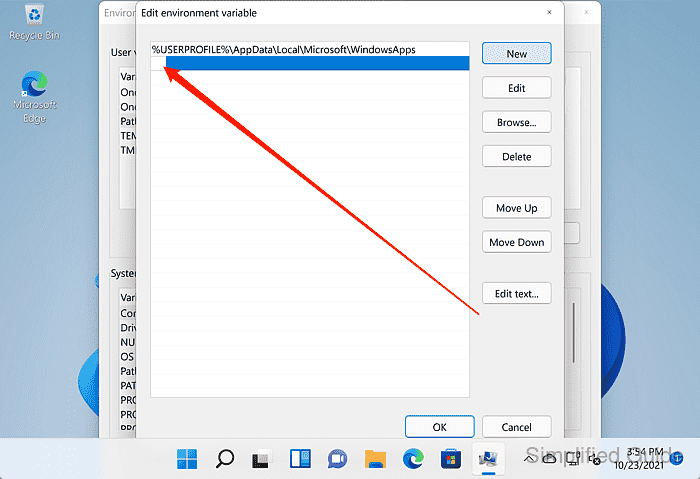
Enter a directory path only (for example C:\Program Files\7-Zip), and avoid adding untrusted writeable folders. Ordering matters when multiple executables share the same name.
- Click the OK button to save the updated Path value.
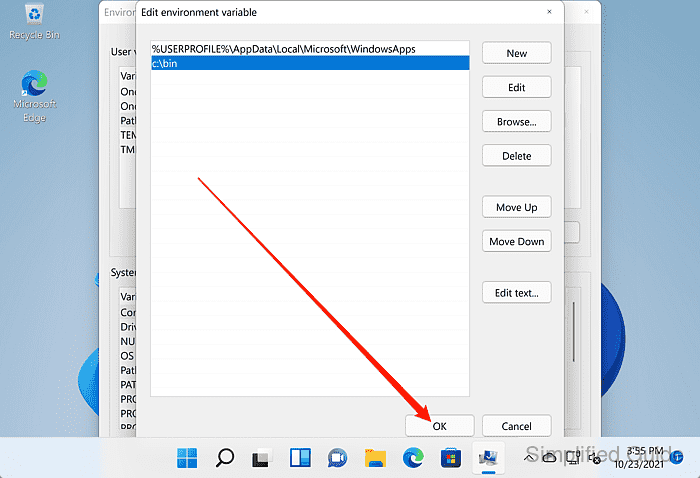
- Click the OK button again to close the remaining dialogs.
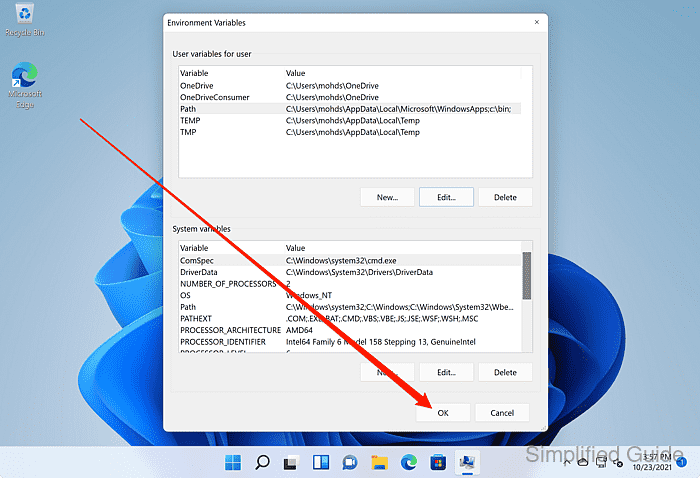
- Open a new Command Prompt or PowerShell window so the updated PATH is loaded.
Already-open terminal windows keep the old PATH value until restarted.
- Confirm the new entry works by resolving an executable from the added folder.
C:\> where 7z
C:\Program Files\7-Zip\7z.exe
If INFO: Could not find files appears, re-check the folder entry and reopen the terminal session.