How to change the zsh prompt in macOS Terminal
Changing the zsh prompt in macOS Terminal makes it easier to read the details that matter during interactive shell work, such as the active user, host, working directory, or current time. A prompt that matches the task at hand reduces mistakes when several terminals, remote sessions, or privileged shells are open at the same time.
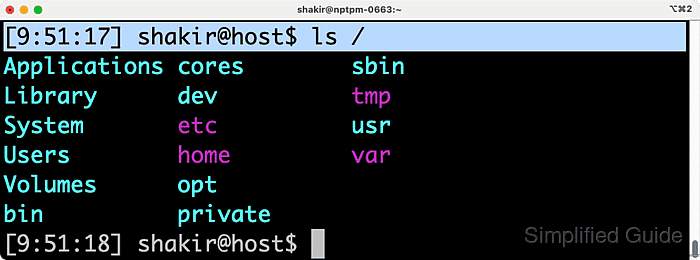
The left prompt in zsh is controlled by the PROMPT parameter, also known as PS1. Prompt escapes such as %n for the user name, %m for the short host name, and %~ for the current directory are expanded each time the shell draws a new prompt. Interactive zsh sessions load these settings from ~/.zshrc, which makes that file the standard place to keep persistent prompt customizations.
These steps assume the Terminal session is already running zsh. Prompt themes, plugin frameworks, or later lines in ~/.zshrc can override a custom PROMPT assignment, so the last matching setting usually wins. Syntax errors in ~/.zshrc also affect every new interactive shell, so keep the change small and reload the file after editing to confirm the prompt still renders correctly.
Steps to change the zsh prompt in macOS Terminal:
- Open the Terminal application.
- Back up the current ~/.zshrc file if it already exists.
$ cp ~/.zshrc ~/.zshrc.bak-$(date +%Y%m%d%H%M%S)
Skip this step when ~/.zshrc does not exist yet.
- Open ~/.zshrc in a text editor.
$ nano ~/.zshrc
If the file does not exist, the editor creates it when saved.
- Add a PROMPT assignment with the format that should appear at the left side of each command line.
PROMPT='[%*] %n@%m %1~ %# '
In zsh, PROMPT and PS1 are equivalent names for the main left prompt, so either variable can be used.
- Use prompt escapes to adjust the information shown in the prompt.
Prompt escape Shows %n Current username %m Short hostname up to the first dot %M Full hostname %~ Current directory with $HOME abbreviated to ~ %1~ Final path component of the current directory %# % for a regular user or # for root %* Current time in 24-hour format with seconds %T Current time in 24-hour format without seconds %t Current time in 12-hour format %D Current date in the default zsh format