How to zip files and folders in Linux
Creating a .zip archive is often the handoff step before sending project files, uploading a release bundle, or keeping a small backup that another operating system can open. On Linux, the important choice is whether the archive should contain a few named files or a full directory tree, because directories need recursive handling to include their contents.
The zip command writes the archive named first on the command line and then adds each path that follows it. Files are stored with relative path names by default, so running the command from the parent directory keeps the archive layout predictable when someone lists or extracts it later.
Creating an archive does not modify the original files, but an existing archive with the same name is updated instead of replaced from an empty set. Use a new output name for a fresh handoff, quote exclude patterns so the shell does not expand them too early, and list or test the archive before sharing it.
Related: How to extract zip files in Linux
Related: How to create a RAR archive in Linux
Steps to zip files and folders in Linux:
- Change to the parent directory that contains the files or folders to archive.
$ cd /tmp/archive-demo
Replace /tmp/archive-demo with the parent path that should appear above the archived items. Paths saved by zip are relative to this working directory unless absolute paths are used.
- Create a .zip archive from selected files.
$ zip selected.zip project/README.md project/docs/install.txt
  adding: project/README.md (stored 0%)
  adding: project/docs/install.txt (stored 0%)
The archive name comes before the input paths. If selected.zip already exists, zip updates matching entries and adds new ones.
- Create a .zip archive from an entire directory tree.
$ zip -r project.zip project
  adding: project/ (stored 0%)
  adding: project/README.md (stored 0%)
  adding: project/docs/ (stored 0%)
  adding: project/docs/install.txt (stored 0%)
  adding: project/cache/ (stored 0%)
  adding: project/cache/build.tmp (stored 0%)
  adding: project/debug.tmp (stored 0%)
The -r option walks subdirectories. Without -r, a directory argument can store only the directory entry instead of the files underneath it.
- Create a recursive archive while excluding cache and temporary files.
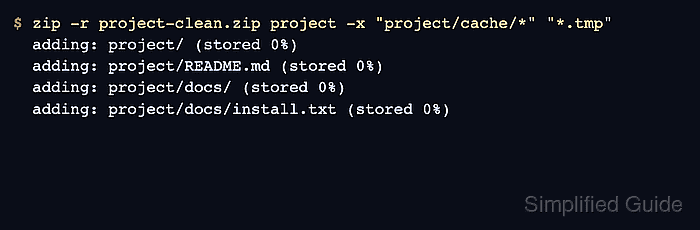
$ zip -r project-clean.zip project -x "project/cache/*" "*.tmp"
  adding: project/ (stored 0%)
  adding: project/README.md (stored 0%)
  adding: project/docs/ (stored 0%)
  adding: project/docs/install.txt (stored 0%)
-x applies exclude patterns to the path names stored in the archive. Keep wildcard patterns quoted so zip receives the pattern instead of a shell-expanded file list.
- List the finished archive without extracting it.
$ unzip -l project-clean.zip
Archive:  project-clean.zip
  Length      Date    Time    Name
---------  ---------- -----   ----
        0  2026-06-13 21:25   project/
       14  2026-06-13 21:25   project/README.md
        0  2026-06-13 21:25   project/docs/
       14  2026-06-13 21:25   project/docs/install.txt
---------                     -------
       28                     4 files
The Name column shows the paths that will be restored during extraction. Confirm that cache files, temporary files, and unintended parent directories are absent.
- Test the compressed data before sharing the archive.
$ unzip -t project-clean.zip
Archive:  project-clean.zip
    testing: project/                 OK
    testing: project/README.md        OK
    testing: project/docs/            OK
    testing: project/docs/install.txt   OK
No errors detected in compressed data of project-clean.zip.
unzip -t reads the archive entries without writing extracted files. Errors here mean the archive should be recreated before it is uploaded, copied, or sent.