How to view ISO file contents in Linux
An .iso file often needs inspection before it is written to removable media, copied into an archive, or handed to another system. Mounting the image read-only exposes its directory tree so files can be listed, opened, or copied without burning a disc or changing the image.
On Linux, mount can attach a regular image file through a loop device, and file can identify whether the source looks like an ISO 9660 filesystem before mounting. The mounted path behaves like a read-only optical disc, while findmnt confirms which loop device and filesystem type are active.
Mounting changes the live filesystem tree, so the steps use sudo and a dedicated mount point under /mnt. Keep shells and file managers out of the mounted directory before unmounting, because an active current directory or open file can leave umount reporting that the target is busy.
Steps to view ISO file contents in Linux:
- Identify the image file before mounting it.
$ file project.iso
project.iso: ISO 9660 CD-ROM filesystem data 'PROJECTISO'
The file command checks file signatures. A different result, such as plain data or a compressed archive, means the file may not be a mountable .iso image.
- Create an empty mount point.
$ sudo mkdir -p /mnt/iso-view
Files already present in /mnt/iso-view stay hidden while another filesystem is mounted there, so use an empty directory for temporary ISO access.
- Mount the .iso file read-only through a loop device.
$ sudo mount -o loop,ro project.iso /mnt/iso-view
The loop option lets mount attach a regular image file as a block device. The ro option keeps the mounted view read-only.
- Confirm that the image is mounted at the expected path.
$ findmnt --mountpoint /mnt/iso-view --output TARGET,SOURCE,FSTYPE,OPTIONS
TARGET        SOURCE     FSTYPE  OPTIONS
/mnt/iso-view /dev/loop6 iso9660 ro,relatime,nojoliet,check=s,map=n,blocksize=2048
The loop device number can differ between systems. The TARGET and FSTYPE columns should match the mount point and ISO filesystem being inspected.
- List the top-level files in the mounted image.
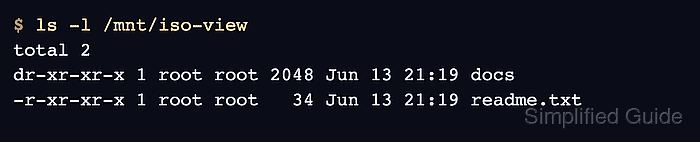
$ ls -l /mnt/iso-view
total 2
dr-xr-xr-x 1 root root 2048 Jun 13 21:19 docs
-r-xr-xr-x 1 root root   34 Jun 13 21:19 readme.txt
- Open a text file from the mounted image.
$ cat /mnt/iso-view/docs/release.txt
Release: Example ISO
Version: 1.0
Use less for long text files and cp for files that should remain available after the image is unmounted.
- Copy a file out of the image when extraction is needed.
$ cp /mnt/iso-view/docs/release.txt ./release.txt
No output means cp finished without reporting an error. The copied file is separate from the read-only ISO image.
- Unmount the image when inspection is finished.
$ sudo umount /mnt/iso-view
Run the command from a directory outside /mnt/iso-view. A shell, editor, or file manager inside the mounted tree can keep the target busy.
Related: How to unmount a disk in Linux - Confirm that the mount point is detached.
$ mountpoint /mnt/iso-view
/mnt/iso-view is not a mountpoint
The message above is the expected state after umount removes the ISO mount.
- Remove the temporary mount point.
$ sudo rmdir /mnt/iso-view