How to check system uptime in Linux
System uptime shows how long the running Linux kernel has been active since the last boot. It helps confirm whether a maintenance reboot happened, match incidents to the current boot window, and decide whether old in-memory state may still be present on the host.
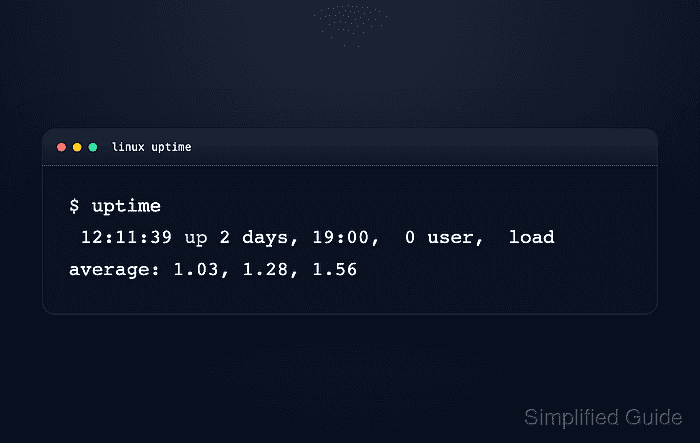
The uptime command prints one summary line with the current time, elapsed uptime, logged-in user count, and load averages for the last 1, 5, and 15 minutes. Use the duration after up for uptime, not the load-average fields, because load average describes scheduler demand rather than elapsed run time.
The same counter is available through /proc/uptime for scripts that need seconds, and uptime --since prints the timestamp for the start of the current uptime period. On shared-kernel containers, these commands can reflect the host kernel rather than the container start time, so use container runtime metadata when the container lifetime itself is the target.
Steps to check system uptime in Linux:
- Display the standard system uptime summary.
$ uptime
 21:11:09 up 1 day,  9:15,  0 users,  load average: 0.04, 0.08, 0.19
The text after up is the elapsed uptime. The trailing load averages are CPU scheduling demand over 1, 5, and 15 minutes.
- Print only the elapsed uptime.
$ uptime --pretty
up 1 day, 9 hours, 15 minutes
Use --pretty when the output will be read by a person or copied into a maintenance note.
- Show when the current uptime period started.
$ uptime --since
2026-06-12 11:55:51
Related: How to check last boot time in Linux for retained reboot history and other boot-time records.
- Read the raw uptime counters from /proc/uptime when a script or manual calculation needs seconds instead of a formatted sentence.
$ cat /proc/uptime
119718.41 952469.64
The first field is uptime in seconds, including time spent suspended. The second field is cumulative CPU idle time across all CPUs, so it can exceed the first field on multi-core systems.