How to check SELinux status
SELinux denials and permissive test modes can make a Linux server behave differently from standard file permissions. Checking SELinux status shows whether policy enforcement is active, only logging denials, or disabled before access-control troubleshooting continues.
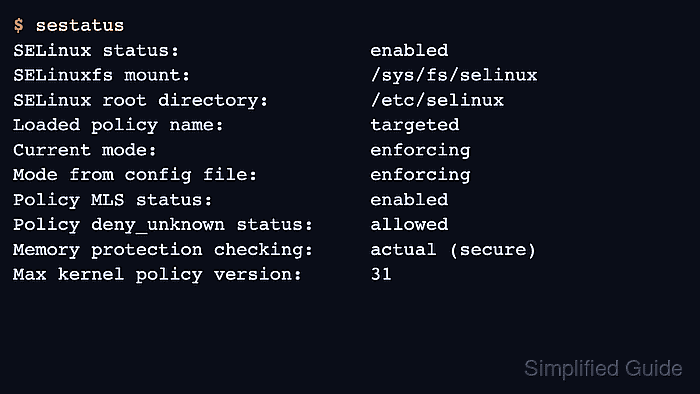
The getenforce command reports the running kernel mode in one word. sestatus adds the mounted SELinux filesystem, loaded policy, current mode, boot-time config mode, and policy details that help explain why an expected denial did or did not occur.
The current mode and /etc/selinux/config can disagree after temporary troubleshooting or before a reboot. Treat Current mode as the live state, treat Mode from config file as the next-boot setting, and review label output only after sestatus reports that SELinux is enabled.
Steps to check SELinux status in Linux:
- Check the running SELinux enforcement mode.
$ getenforce
Enforcing
Enforcing blocks policy violations, Permissive logs violations without blocking them, and Disabled means the SELinux policy is not loaded.
- Display detailed SELinux status and policy fields.
$ sestatus
SELinux status:                 enabled
SELinuxfs mount:                /sys/fs/selinux
SELinux root directory:         /etc/selinux
Loaded policy name:             targeted
Current mode:                   enforcing
Mode from config file:          enforcing
Policy MLS status:              enabled
Policy deny_unknown status:     allowed
Memory protection checking:     actual (secure)
Max kernel policy version:      31
Use Current mode for the live state. Mode from config file shows the mode requested for the next boot.
- Check the boot-time SELinux mode when the config file is present.
$ grep '^SELINUX=' /etc/selinux/config
SELINUX=enforcing
Changing /etc/selinux/config can require relabeling or a planned reboot. Treat the file as inspection data unless the maintenance task explicitly includes a mode change.
- Confirm that the current shell has an SELinux context when SELinux is enabled.
$ id -Z
unconfined_u:unconfined_r:unconfined_t:s0-s0:c0.c1023
A context string with user, role, type, and level fields confirms that labels are visible to the session. If getenforce reports Disabled, this command can report that it works only on an SELinux-enabled kernel.