How to show filesystem type in Linux
Choosing mount options, repair tools, or migration steps without checking the filesystem type can point the wrong command at a volume. A Linux path may sit on ext4, xfs, btrfs, vfat, overlay, tmpfs, or a network filesystem, and each type has its own limits and maintenance tools.
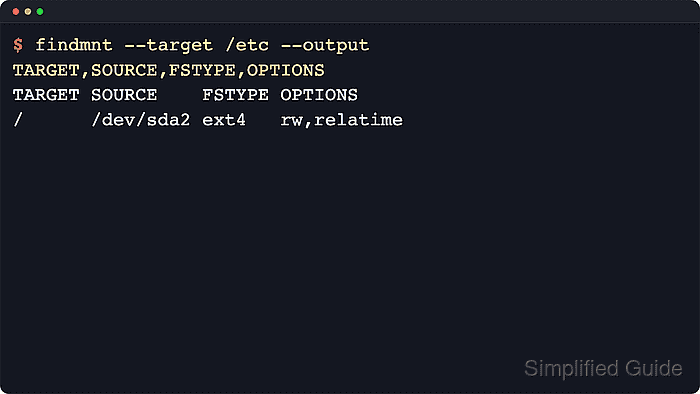
findmnt reads the live mount table and resolves any file or directory to the filesystem that contains it. Explicit TARGET, SOURCE, and FSTYPE columns fix the output format for terminal checks and scripts without depending on the default tree view.
Use the path-based check first when the filesystem is already mounted. If the target is an unmounted partition, logical volume, or disk image, inspect the block device with lsblk or blkid instead, and avoid parent whole-disk nodes such as /dev/sda when the filesystem lives on /dev/sda1 or another partition.
Steps to show Linux filesystem type:
- Show the filesystem that contains a path.
$ findmnt --target /etc --output TARGET,SOURCE,FSTYPE
TARGET SOURCE    FSTYPE
/      /dev/sda2 ext4
findmnt --target accepts a file or directory, so /etc resolves to the root mount unless a separate filesystem is mounted below that path.
- Print only the filesystem type when a script or quick check needs the raw value.
$ findmnt --noheadings --output FSTYPE --target /etc
ext4
If the output says overlay or tmpfs, the path is on that live mount. That is common inside containers and for runtime directories.
- Check the same mounted path with size and usage context when space is part of the decision.
$ df -hT /etc
Filesystem     Type  Size  Used Avail Use% Mounted on
/dev/sda2      ext4   62G   11G   48G  19% /
df reports only mounted filesystems. Use findmnt when the mount source and exact FSTYPE are the main decision, and use the mount-point usage guide for deeper capacity checks.
Related: How to check mount point usage in Linux - List filesystem fields for visible block devices when the target is a partition or logical volume rather than a mounted path.
$ lsblk --fs --list
NAME FSTYPE FSVER LABEL UUID                                 FSAVAIL FSUSE% MOUNTPOINTS
sda
sda1 vfat   FAT32 EFI   058E-72AC                             505M     1% /boot/efi
sda2 ext4   1.0   root  c7f70fb1-ad04-47c0-8aa2-873cbef19d05   48G    19% /
Blank FSTYPE on a parent disk is normal when the filesystem is on a partition below it. Use the partition or mapped device row for mount, repair, and metadata commands.
Related: How to show disk information in Linux - Probe a known device directly when it is not mounted.
$ sudo blkid --match-tag TYPE --output value /dev/sdb1
xfs
blkid reads filesystem metadata from the selected device. It is the right check for one known partition or logical volume, while findmnt is the right check for a path that is already mounted.
Related: How to get a disk or partition UUID in Linux