How to recover deleted files using PhotoRec
Deleted files are easiest to recover before the source filesystem receives more writes. PhotoRec can carve documents, archives, photos, and videos from raw disk data, but every package install, browser cache, log entry, or copy operation on the affected filesystem can overwrite blocks that still contain the missing content.
PhotoRec is part of the testdisk suite and searches for file signatures instead of relying on directory entries. That makes it useful when a partition has been reformatted, metadata is missing, or a normal undelete tool cannot list the deleted path. The tradeoff is that recovered files usually lose their original filenames and folder hierarchy.
Run the scan from a live Linux session or another machine when the lost data lived on the system disk, and write the recovered output to a different mounted filesystem. Choose the ext2/ext3/ext4 filesystem mode only for those source filesystems; choose Other for FAT, NTFS, exFAT, XFS, Btrfs, and other non-ext sources.
Steps to recover deleted files using PhotoRec:
- Stop writes to the device that held the deleted files.
Do not install packages, download files, copy data, or keep normal services writing to the source filesystem after deletion. New writes can overwrite blocks that PhotoRec would otherwise recover.
- Attach a separate destination disk, SSD, or network mount for the recovered files.
The destination must not be the filesystem being recovered. Avoid a FAT32 destination when recovered files may exceed 4 GB.
- Boot a live Linux session or another system when the deleted data is on the internal system disk.
For Ubuntu live media, choose Try Ubuntu so logs, swap, package operations, and desktop caches stay off the affected disk.
- Install the package that provides photorec on Ubuntu or Debian.
$ sudo apt install testdisk
Most distributions package photorec with testdisk. Use sudo dnf install testdisk on Fedora-family systems or sudo pacman -S testdisk on Arch-family systems.
- Confirm that PhotoRec starts before opening the recovery menu.
$ photorec /version
PhotoRec 7.2, Data Recovery Utility, February 2024
Christophe GRENIER <grenier@cgsecurity.org>
https://www.cgsecurity.org

Version: 7.2
- List the source disk and destination filesystem.
$ lsblk --fs
NAME   FSTYPE FSVER LABEL    UUID                                 FSAVAIL FSUSE% MOUNTPOINTS
sdb
`-sdb1 ext4   1.0   photos   064e84d3-b7e4-45d0-89ba-6b28df345687   72G    41% /media/live/photos
sdc
`-sdc1 ext4   1.0   recover  88b2857a-64f5-4c0f-829d-470f4e8d93fd  430G    12% /mnt/recovery
Use the whole disk such as /dev/sdb when the partition table is damaged or the deleted files may span partitions. Use the partition device such as /dev/sdb1 when the lost files came from one known filesystem.
- Confirm that the recovery destination is mounted read-write.
$ findmnt /mnt/recovery
TARGET        SOURCE    FSTYPE OPTIONS
/mnt/recovery /dev/sdc1 ext4   rw,relatime
- Start PhotoRec with the destination prefix and source device.
$ sudo photorec /d /mnt/recovery/photorec /dev/sdb
Replace /dev/sdb and /mnt/recovery/photorec with your source device and destination prefix. With /d, PhotoRec writes output to numbered paths such as /mnt/recovery/photorec.1 and increments the suffix if that path already exists.
- Select the partition or disk region that held the deleted files.
Open [ File Opt ] only when you need to recover a narrow set of file families such as jpg, zip, or pdf. Leaving the defaults enabled avoids missing formats that were not obvious before the scan.
- Choose [ Search ] to start the recovery workflow.
- Select the source filesystem type when prompted.
Choose [ ext2/ext3/ext4 ] only for ext2, ext3, or ext4 source filesystems. Choose [ Other ] for FAT, NTFS, exFAT, XFS, Btrfs, and other filesystem types.
- Choose the scan range.
Use [ Free ] when the filesystem metadata is readable and the goal is deleted files from unallocated space. Use [ Whole ] when the source was reformatted, the filesystem is damaged, or the free-space-only choice is unavailable.
- Let the scan finish and note the numbered recovery path.
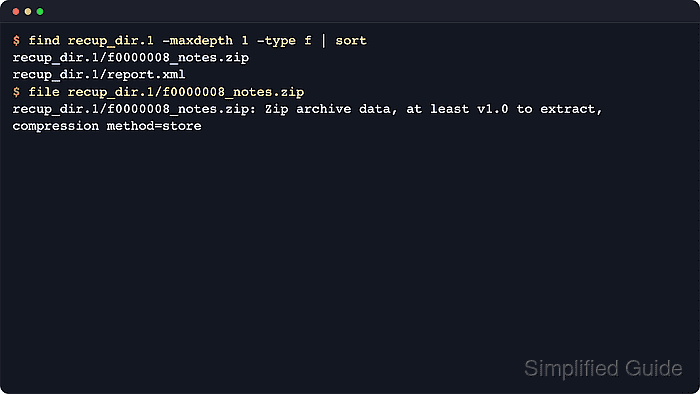
PhotoRec writes recovered files and report.xml into paths such as /mnt/recovery/photorec.1. It creates another numbered path when the destination prefix already exists.
- List the recovered output from the destination filesystem.
$ ls /mnt/recovery/photorec.1
f0000128_notes.zip  report.xml
- Identify candidate files before opening them.
$ file /mnt/recovery/photorec.1/f0000128_notes.zip
/mnt/recovery/photorec.1/f0000128_notes.zip: Zip archive data, at least v1.0 to extract, compression method=store
Recovered filenames usually begin with f, b, or t instead of the original name. Use extensions, file output, embedded timestamps, and application previews to sort the results.
- Open or extract the recovered files from the destination filesystem.
$ unzip -l /mnt/recovery/photorec.1/f0000128_notes.zip Archive: /mnt/recovery/photorec.1/f0000128_notes.zip Length Date Time Name --------- ---------- ----- ---- 38 2026-06-13 11:19 notes.txt --------- ------- 38 1 file - Copy the verified keepers into a new working directory.
Do not resume writes to the original source disk until the recovered files have been reviewed. If the first pass misses important data, run a second pass with different [ File Opt ] settings or a [ Whole ] scan before returning the source filesystem to normal use.