How to show hidden files and folders in Linux
Hidden files and folders in Linux usually hold shell profiles, application settings, and cached state that normal directory listings keep out of the way. Showing them helps when checking what a program stored in a home directory, comparing profile contents, or cleaning up leftover configuration after a change.
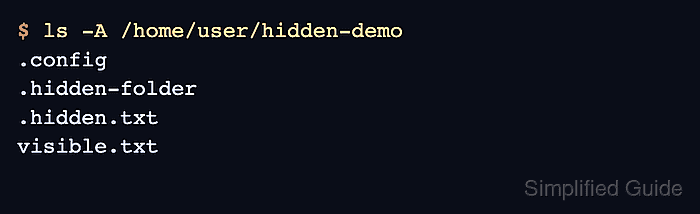
On Linux, an entry is hidden by naming convention rather than by a separate filesystem flag. GNU Coreutils ls skips names that start with a dot in normal directory listings, ls -A includes those dot-prefixed entries without the special . and .. markers, and ls -a includes the markers too.
Viewing hidden entries does not bypass permissions or change the files. Treat dotfiles as active configuration when they belong to shells, desktop applications, services, or development tools, because editing or deleting them can change later sessions or application defaults.
Steps to show hidden files and folders in Linux:
- List the target directory normally to see only non-hidden entries.
$ ls /home/user/hidden-demo
visible.txt
Replace /home/user/hidden-demo with the directory that needs inspection, or omit the path when the current shell is already inside that directory.
- Confirm hidden files and folders are visible without the special current and parent directory markers.
$ ls -A /home/user/hidden-demo
.config
.hidden-folder
.hidden.txt
visible.txt
-A is often the clearer day-to-day choice because it keeps hidden entries visible while omitting . and ...
- Show every entry when the special directory markers are also needed.
$ ls -a /home/user/hidden-demo
.
..
.config
.hidden-folder
.hidden.txt
visible.txt
-a includes all dot-prefixed names, so . and .. appear alongside the actual hidden files and folders.
- Add detailed metadata while keeping hidden entries visible.
$ ls -lA /home/user/hidden-demo
total 16
drwxr-xr-x 2 user user 4096 Apr 14 01:33 .config
drwxr-xr-x 2 user user 4096 Apr 14 01:33 .hidden-folder
-rw-r--r-- 1 user user    7 Apr 14 01:33 .hidden.txt
-rw-r--r-- 1 user user    8 Apr 14 01:33 visible.txt
Use -lA when the listing needs permissions, ownership, sizes, or timestamps without clutter from . and ...