How to recover deleted files or folders in Linux
Deleted files and folders in Linux are recoverable only while the original data blocks, directory metadata, or an open file descriptor still exist. The first response should reduce new writes on the affected filesystem, because package installs, logs, downloads, and normal application activity can overwrite the same blocks the recovery attempt needs.
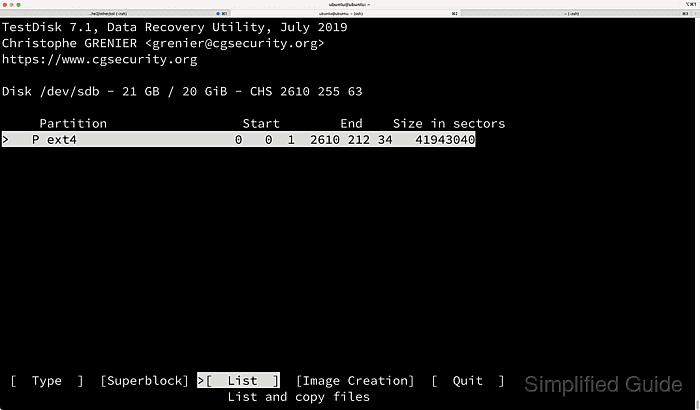
Start with the least disruptive source of recovery. A desktop deletion may still be in the user's Trash, a running process may still hold a deleted file open under /proc, and offline tools such as TestDisk or PhotoRec can scan a quiet source device when the normal path and metadata are gone.
Write recovered data to a different disk, partition, or network mount. If the lost data was on the running root filesystem, stop the live session as soon as possible and continue from rescue or live media instead of installing tools or scanning the mounted root volume.
Steps to recover deleted files or folders in Linux:
- Stop writes to the affected filesystem and map the parent path to its mounted device.
$ findmnt -no SOURCE,TARGET,FSTYPE -T /srv/projects
/dev/sdb1 /srv ext4
Use the deleted file's parent directory when the exact path is gone. Do not install packages, download files, or keep services writing logs on the same filesystem after deletion.
- Check the desktop Trash for the user who deleted the item.
$ ls ~/.local/share/Trash/files/
old-photo.jpg
project-notes.odt
File managers usually keep trashed files under ~/.local/share/Trash/files. Restore the item from the file manager or move it back from that directory when the missing folder is still present.
- List deleted files that are still open on the affected path or mount.
$ sudo lsof +L1 /tmp
COMMAND PID USER   FD   TYPE DEVICE SIZE/OFF NLINK    NODE NAME
python3 2921 root    3w   REG   0,82       14     0 3014812 /tmp/deleted.log (deleted)
The NLINK value 0 and the (deleted) marker show that the pathname is gone while the process still holds the file descriptor. No output means lsof did not find a visible deleted-open file there.
Related: How to check deleted files still open in Linux - Copy the open descriptor before the process closes it.
$ sudo cp /proc/2921/fd/3 /var/tmp/deleted.log.recovered
Use the PID and file descriptor from the lsof row. Restarting or killing the process before the copy finishes can close the only remaining handle.
- Verify the copied file from the recovery destination.
$ cat /var/tmp/deleted.log.recovered
live log line
- Boot live or rescue media when Trash and open-descriptor recovery do not apply.
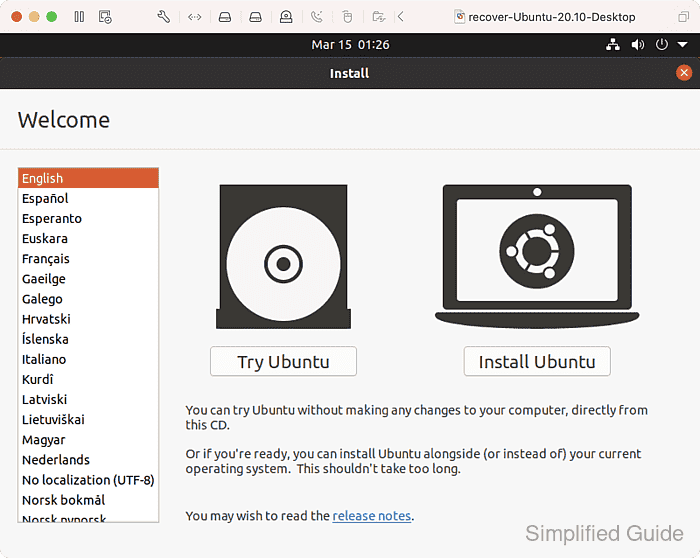
For Ubuntu live media, choose Try Ubuntu instead of starting the installer so the internal disks stay as quiet as possible while recovery work runs.
- Confirm that the recovery destination is mounted read-write.
$ findmnt /mnt/recovery
TARGET        SOURCE    FSTYPE OPTIONS
/mnt/recovery /dev/sdc1 ext4   rw,relatime
Do not save recovered files back to the source filesystem. Use a separate destination with enough free space for the recovered output.
- Install the recovery tools in the live session or recovery host.
$ sudo apt install testdisk lsof
On Ubuntu and Debian, the testdisk package provides both testdisk and photorec. Use your distribution package manager in the recovery environment, not on the affected source filesystem.
- Confirm that TestDisk starts.
$ testdisk /version
TestDisk 7.2, Data Recovery Utility, February 2024
Christophe GRENIER <grenier@cgsecurity.org>
https://www.cgsecurity.org

Version: 7.2
##### snipped #####
PhotoRec should also start with photorec /version before using the carving workflow.
- Unmount the affected source partition before metadata-based recovery.
$ sudo umount /dev/sdb1
Do not run recovery tools against a mounted writable source filesystem. If the source is /, /boot, or another busy system volume, continue from live or rescue media.
Related: How to unmount a disk in Linux - Start with TestDisk when original names and folders may still be recoverable.
$ sudo testdisk /dev/sdb
Select the correct disk, open Advanced for the existing partition, use List or Undelete to browse recoverable entries, mark the files or folders needed, and press C to copy them to the separate recovery destination.
- Switch to PhotoRec when TestDisk cannot list the deleted entries.
$ sudo photorec /d /mnt/recovery/photorec /dev/sdb
PhotoRec carves files by signature, so it can recover data when directory metadata is gone, but recovered filenames and folder paths are usually not preserved. Narrow file types in File Opt only when the needed formats are known.
Related: How to recover deleted files using PhotoRec - Verify the recovered files from the destination filesystem before reusing the source.
$ find /mnt/recovery-out -maxdepth 2 -type f
/mnt/recovery-out/images/logo.png
/mnt/recovery-out/project/project-notes.odt
Open the most important files, compare sizes where originals are known, and fall back to backups or snapshots when recovered copies are incomplete or corrupted.