How to mount a disk or partition in Linux
A newly attached data disk is not usable from normal file paths until its filesystem is attached to a directory. In Linux, a manual mount connects the device to a mount point so applications, shell commands, and users can read or write the volume through that path.
The kernel exposes storage as block devices, and the mount command needs the filesystem device rather than a guessed disk name. Query the partition before mounting it because a whole-disk node, a mounted partition, and an unformatted device need different handling.
The steps use a sample data partition, an ext4 filesystem, and a data mount point. Replace those values with the actual device, filesystem type, and mount point, keep the mount point empty before use, and create a persistent mount entry when the disk must survive a reboot.
Steps to mount a disk or partition in Linux:
- List the target block device and current mount state.
$ lsblk -o NAME,SIZE,TYPE,MOUNTPOINTS /dev/sdb1
NAME   SIZE TYPE MOUNTPOINTS
sdb1   100G part
Use the filesystem device, usually a partition such as /dev/sdb1, /dev/vdb1, or /dev/nvme1n1p1. If MOUNTPOINTS already shows a path, that filesystem is already mounted there.
- Read the filesystem type and UUID from the device.
$ sudo blkid /dev/sdb1
/dev/sdb1: LABEL="data" UUID="3f5e6c0d-2c2f-4a7f-b2b7-a1d4fd6c9ec4" BLOCK_SIZE="4096" TYPE="ext4"
blkid reads filesystem metadata from the device. The TYPE value is the filesystem type to pass to mount when automatic detection is not enough.
Related: How to get a disk or partition UUID in Linux - Create an empty mount point.
$ sudo mkdir -p /mnt/data
Files already present in /mnt/data stay hidden until the mounted filesystem is unmounted.
- Mount the filesystem on the chosen path.
$ sudo mount -t ext4 /dev/sdb1 /mnt/data
Mounting the wrong device exposes the wrong filesystem at the mount point and can hide files that were already in that directory.
- Confirm that the filesystem is attached to the expected directory.
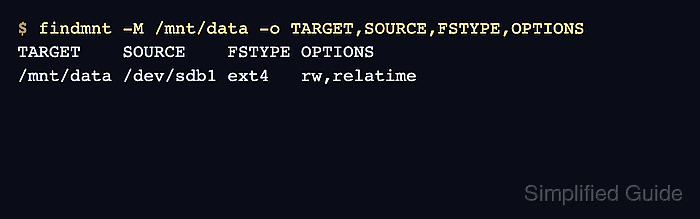
$ findmnt -M /mnt/data -o TARGET,SOURCE,FSTYPE,OPTIONS
TARGET    SOURCE    FSTYPE OPTIONS
/mnt/data /dev/sdb1 ext4   rw,relatime
The -M option checks the exact mount point instead of resolving a parent directory.
- Check the mounted filesystem capacity.
$ df -h /mnt/data
Filesystem      Size  Used Avail Use% Mounted on
/dev/sdb1        98G  4.0K   93G   1% /mnt/data
- Unmount the filesystem when temporary manual access is finished.
$ sudo umount /mnt/data
Leave the filesystem mounted when /mnt/data is the intended active path. Manual mounts disappear after reboot unless they are saved separately.
Related: How to unmount a disk in Linux