How to show CPU usage in Linux
Checking CPU usage in Linux shows whether slow commands, high load, or alert noise is tied to processor time. When a server feels laggy, top separates active CPU work from idle capacity and I/O wait before the investigation moves to storage, memory, or network paths.
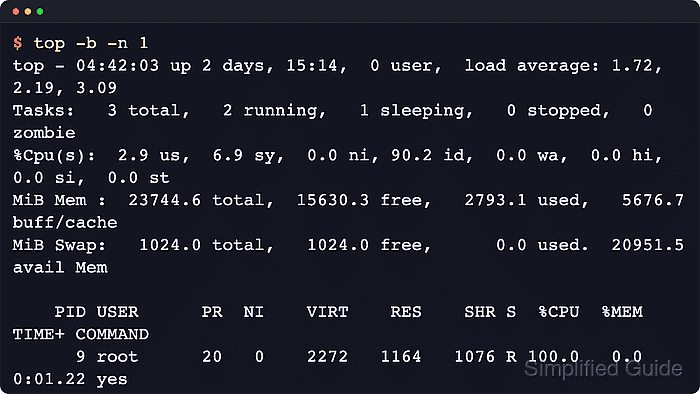
The top display combines a system summary with a process table. The %Cpu(s) row shows user time, system time, idle time, I/O wait, interrupt time, and stolen virtual CPU time, while the %CPU column shows each task's processor share since the last refresh.
Use the live view for short observations and top -b -n 1 for a copyable snapshot in tickets, chat, or incident notes. A single busy thread often appears near 100.0 in the %CPU column even when the system still has idle capacity, and multithreaded tasks can exceed 100 on multi-CPU systems. In containers, load averages may reflect the host while the task table only shows processes visible inside the container namespace.
Steps to show CPU usage in Linux with top:
- Start top to open the live CPU summary and process table.
$ top
The summary area starts with load average, task counts, and the combined %Cpu(s) line.
- Read the %Cpu(s) line near the top of the screen.
%Cpu(s): 3.4 us, 9.1 sy, 0.0 ni, 86.4 id, 1.1 wa, 0.0 hi, 0.0 si, 0.0 st
us and sy show active CPU work, id shows idle capacity, and wa shows time waiting for I/O completion.
- Press 1 when a single thread may be saturating one CPU.
1 switches the combined summary into separate %Cpu0, %Cpu1, and later CPU lines when the terminal has enough room.
- Press P when the busiest tasks are not at the top.
P sorts the task table by the %CPU column.
- Capture a one-shot CPU snapshot for a ticket or incident note.
$ top -b -n 1
top - 02:39:04 up 21:02,  0 users,  load average: 0.26, 0.48, 0.52
Tasks:   3 total,   2 running,   1 sleeping,   0 stopped,   0 zombie
%Cpu(s):  3.4 us,  9.1 sy,  0.0 ni, 86.4 id,  1.1 wa,  0.0 hi,  0.0 si,  0.0 st
MiB Mem :  11948.5 total,   7681.1 free,    938.4 used,   3576.2 buff/cache
MiB Swap:   4096.0 total,   4096.0 free,      0.0 used.  11010.1 avail Mem

    PID USER      PR  NI    VIRT    RES    SHR S  %CPU  %MEM     TIME+ COMMAND
     39 root      20   0   16668   5724   4584 R 100.0   0.0   0:01.21 yes
      1 root      20   0    5872   3212   2952 S   0.0   0.0   0:00.00 bash
     41 root      20   0    8312   4276   2376 R   0.0   0.0   0:00.00 top
The %Cpu(s) line shows the system-wide split, while the %CPU column identifies the process using that time.
- Press q to leave top when the check is complete.