How to limit CPU usage for a process in Linux
A runaway batch job or local command can consume enough CPU time to make an otherwise usable Linux host feel unresponsive. Limiting only that process by PID lets the task keep running while shells, monitoring, and other services continue to get scheduler time.
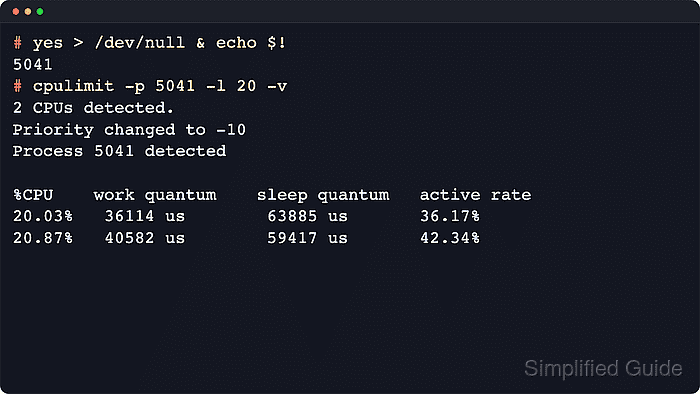
cpulimit watches a target process and enforces an average CPU ceiling by sending SIGSTOP and SIGCONT. PID targeting with --pid is safer than matching a command name when several copies of the same program are running, because the limiter attaches to the exact process selected from ps or pgrep output.
This is process throttling, not a CPU frequency governor change. By default, the limit is a percentage of one CPU; values above 100 can be meaningful on multi-core systems, and short ps or top samples can move around while cpulimit repeatedly pauses and resumes the target.
Steps to limit CPU usage for a process with cpulimit in Linux:
- Install cpulimit from the package repository if it is not already available.
$ sudo apt update && sudo apt install --assume-yes cpulimit procps
The procps package provides ps on minimal Debian and Ubuntu systems. Use the distribution package manager for non-APT systems.
- Start a temporary CPU-heavy process when a safe test PID is needed.
$ yes > /dev/null & echo $!
65
Use the real PID instead when limiting an existing application. Use pgrep -a process-name or the process resource usage guide when the PID is not known.
Related: How to check process CPU and memory usage in Linux - Check the process CPU use before applying the cap.
$ ps -p 65 -o pid,pcpu,stat,comm PID %CPU STAT COMMAND 65 99.0 R yes - Attach cpulimit to the selected PID.
$ cpulimit --pid 65 --limit 20 --verbose
Proceeding with kernel frequency set to 250
8 CPUs detected.
Process 65 detected

%CPU	work quantum	sleep quantum	active rate
17.96%	 73162 us	 26837 us	65.70%
21.53%	 71084 us	 28915 us	76.52%
22.41%	 72286 us	 27713 us	80.99%
##### snipped #####
Use sudo cpulimit when the target process belongs to another user. A priority warning can appear when cpulimit cannot renice itself; the cap is still working when the reported %CPU samples settle near the requested limit.
- Leave cpulimit running in the foreground while the process needs the cap.
cpulimit controls the process with stop and continue signals, so latency-sensitive or interactive programs can pause visibly. Stop the limiter if that behavior is not acceptable for the target.
- Stop cpulimit when the cap is no longer needed.
Press Ctrl+C in the limiter terminal. By default cpulimit sends SIGCONT when it exits, so the watched process continues running.
- Remove the temporary test process after verification.
$ kill 65
Skip this cleanup step when the PID belongs to a real application that should keep running.