How to check CPU clock speed in Linux
A Linux CPU can report a different clock speed for each logical processor as power saving, boost behavior, firmware limits, and virtual-machine boundaries change. Checking the live MHz table shows whether the running system exposes current frequency data before a slow host is mistaken for a throttled host.
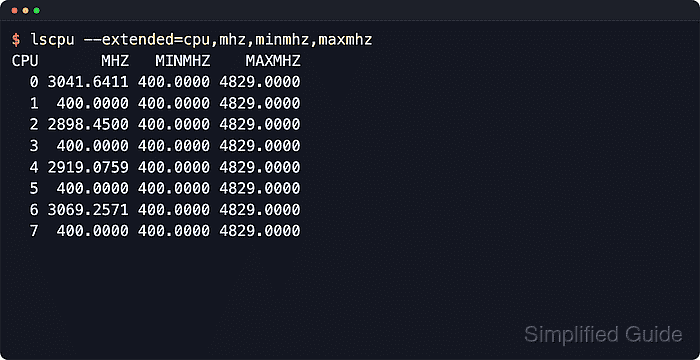
The lscpu command reads CPU details from kernel interfaces such as /sys and /proc/cpuinfo. Its extended table can request the current MHZ value plus the visible MINMHZ and MAXMHZ range, so the output stays focused on clock speed instead of the full processor inventory.
Virtual machines, containers, and some hypervisor-backed guests may return - for the frequency columns even when the column names are valid. Treat that as unavailable live CPUFreq data, not as a zero-speed processor, and rerun the check on the physical host or a guest that exposes frequency scaling when the live value is required.
Steps to check CPU clock speed in Linux:
- Open a terminal on the target Linux system.
- Print the per-CPU frequency table with lscpu.
$ lscpu --extended=cpu,mhz,minmhz,maxmhz
CPU       MHZ   MINMHZ    MAXMHZ
  0 3097.4021 400.0000 4829.0000
  1  400.0000 400.0000 4829.0000
  2 2914.8713 400.0000 4829.0000
  3  400.0000 400.0000 4829.0000
  4 2928.5160 400.0000 4829.0000
  5  400.0000 400.0000 4829.0000
  6 3065.7720 400.0000 4829.0000
  7  400.0000 400.0000 4829.0000
MHZ is the current value reported for that logical CPU. MINMHZ and MAXMHZ show the lower and upper frequency range visible to the running kernel, and the current value can change between runs.
- Compare active rows with the visible range before treating the CPU as slow.
Idle systems often leave many rows near MINMHZ. Re-run the same command while the workload is active when checking whether busy CPUs rise above their idle frequency.
- Recognize unavailable frequency data in virtualized or limited environments.
$ lscpu --extended=cpu,mhz,minmhz,maxmhz
CPU MHZ MINMHZ MAXMHZ
  0   -      -      -
  1   -      -      -
  2   -      -      -
  3   -      -      -
  4   -      -      -
  5   -      -      -
  6   -      -      -
  7   -      -      -
A - value means lscpu did not receive that field from the current kernel, architecture, or hypervisor layer. Move the same check to the physical host or a guest with CPUFreq visibility when the live MHz value is required.