How to install Python packages for a Jupyter kernel
Notebook kernels can run from a different Python environment than the shell that starts Jupyter Notebook. A package install fixes ModuleNotFoundError only when it lands in the environment behind the active kernel, especially after registering a project virtual environment as a separate kernel.
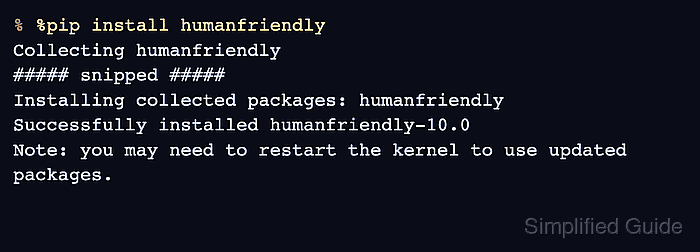
IPython's %pip magic runs pip through the current kernel instead of the terminal's default Python. That makes it safer than a separate terminal pip install when a Notebook server exposes several kernels or when jupyter notebook itself comes from another virtual environment.
Keep the package install and the import test in the notebook that will run the analysis. Some packages still need a kernel restart after installation, particularly when code has already imported part of the package stack, so use a fresh import check before continuing.
Steps to install Python packages for a Jupyter kernel:
- Open the notebook that uses the target kernel.
- Run a code cell that prints the kernel Python executable.
import sys
print(sys.executable)
/home/analyst/projects/analysis/.venv/bin/python
The path should match the environment that should receive the package. If it points to another interpreter, change the notebook kernel before installing packages.
Related: How to change the kernel in Jupyter Notebook - Install the package from a notebook code cell with %pip.
%pip install humanfriendly
Collecting humanfriendly
##### snipped #####
Successfully installed humanfriendly-10.0
Note: you may need to restart the kernel to use updated packages.
Replace humanfriendly with the package the notebook needs. %pip keeps the install tied to the active IPython kernel; !pip can follow a different shell path on some systems.
- Import the package from the same kernel.
import humanfriendly
print(humanfriendly.format_size(2048, binary=True))
2 KiB
Restart the kernel and rerun this cell only when the import still fails after installation. Restarting clears in-memory variables.