How to convert a Jupyter Notebook to Markdown
Jupyter notebooks often start as interactive analysis, while Markdown is easier to review in Git, paste into documentation systems, or hand off to static-site generators. nbconvert exports the notebook JSON into a text document while preserving headings, code cells, saved output, and image references.
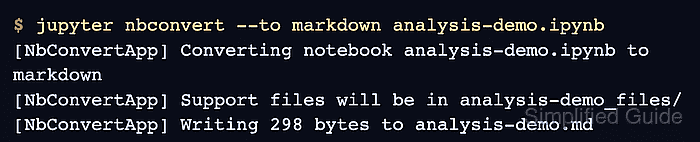
The jupyter nbconvert command writes the generated .md file next to the source notebook by default. When the notebook contains image output, the Markdown file points to a companion directory named after the notebook with a _files suffix, so the Markdown file and that directory need to move together.
Use analysis-demo.ipynb as a placeholder for the source notebook in the sample commands. Replace it with the real notebook name and run from a working copy when the exported Markdown will be edited for publishing, because the exported text is a snapshot of the notebook's saved cells and outputs.
Steps to convert a Jupyter Notebook to Markdown:
- Convert the notebook to Markdown with nbconvert.
$ jupyter nbconvert --to markdown analysis-demo.ipynb
[NbConvertApp] Converting notebook analysis-demo.ipynb to markdown
[NbConvertApp] Support files will be in analysis-demo_files/
[NbConvertApp] Making directory analysis-demo_files
[NbConvertApp] Writing 298 bytes to analysis-demo.md
- List the generated Markdown file and asset directory.
$ ls
analysis-demo.ipynb
analysis-demo.md
analysis-demo_files
- Check the exported image assets when nbconvert reports support files.
$ ls analysis-demo_files
analysis-demo_2_0.png
Move or commit the analysis-demo_files/ directory with analysis-demo.md so image links continue to resolve.
- Verify that the generated Markdown contains the expected notebook content.
$ python - <<'PY'
from pathlib import Path

markdown = Path("analysis-demo.md").read_text(encoding="utf-8")
checks = {
    "title": "# Quarterly analysis",
    "code cell": "total = 125000",
    "stdout": "total revenue: $125,000",
    "image link": "analysis-demo_files/analysis-demo_2_0.png",
}

for label, text in checks.items():
    print(f"{label}: {text in markdown}")
PY
title: True
code cell: True
stdout: True
image link: True
The printed True values mean the exported file includes the notebook heading, a code cell, saved stdout, and the generated image link.
Tool: Markdown Previewer