How to shut down a running Jupyter Notebook kernel
A Jupyter Notebook kernel keeps the code state for an open notebook alive on the server. Shutting down that kernel frees memory and ends stuck or abandoned work without stopping the Jupyter Server process that serves the file browser and other notebooks.

Notebook 7 exposes kernel shutdown from the open notebook Kernel menu. The file browser Running panel shows the server-side session before and after the action, which helps distinguish stopping one notebook kernel from shutting down the whole server.
Save any notebook changes before stopping the kernel. The .ipynb file remains on disk, but in-memory variables, imported modules, temporary objects, and active cell execution are discarded. Opening or running the notebook again starts a fresh kernel.
Related: How to remove a Jupyter Notebook kernel
Related: How to stop a running Jupyter Server
Steps to shut down a Jupyter Notebook kernel:
- Open the notebook whose kernel should be stopped.

The toolbar should show the attached kernel, such as Python 3 (ipykernel). If it already shows No Kernel, that notebook has no running kernel to stop.
- Open the Kernel menu.
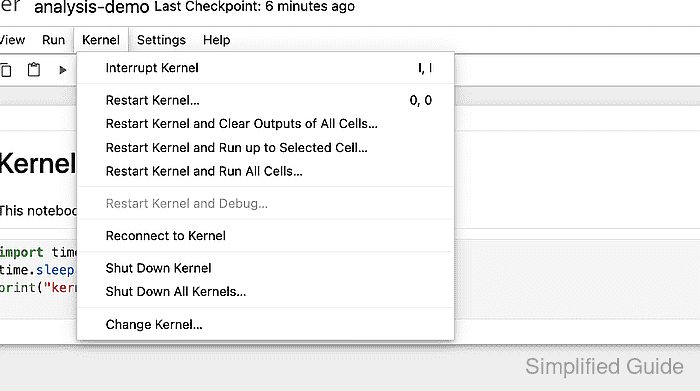
- Select Shut Down Kernel.

Kernel shutdown discards the current memory state. Use Interrupt Kernel instead when you only need to stop a running cell and keep the kernel alive.
- Open Running in the file browser.

The notebook name should no longer appear under KERNELS, while the Files and Running tabs still load from the running server.