How to remove a Jupyter Notebook kernel
Jupyter Notebook shows available runtimes from kernelspec directories registered with Jupyter. Old virtual environments, renamed projects, or failed language-kernel installs can leave entries in the launcher that no longer point to an environment worth keeping.
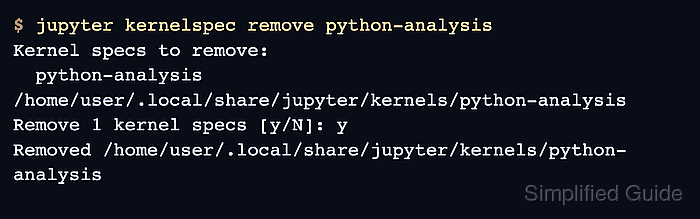
The jupyter kernelspec command works on the registration record, not the environment behind it. Removing a kernelspec hides that kernel from Notebook and other Jupyter front ends, but it does not delete the Python virtual environment, Conda environment, or language runtime that the kernelspec may have launched.
Use the internal kernelspec name from jupyter kernelspec list, not just the display label shown in the browser. The directory path is the final check before deletion, and open Notebook tabs may need a refresh before their kernel menus stop showing the removed entry.
Steps to remove a Jupyter Notebook kernel:
- List installed Jupyter kernelspecs.
$ jupyter kernelspec list
Available kernels:
  python3            /opt/jupyter/venv/share/jupyter/kernels/python3
  python-analysis    /home/user/.local/share/jupyter/kernels/python-analysis
- Confirm the target kernelspec name and directory.
Remove only the entry whose left-column name and path match the stale kernel. Do not remove python3 unless the default Python kernel is intentionally being replaced.
- Shut down notebooks that are still using the target kernel.
Removing the kernelspec stops new launches from that entry; it does not stop an already-running kernel process cleanly.
Related: How to shut down a running Jupyter Notebook kernel - Remove the target kernelspec by internal name.
$ jupyter kernelspec remove python-analysis
Kernel specs to remove:
  python-analysis      /home/user/.local/share/jupyter/kernels/python-analysis
Remove 1 kernel specs [y/N]: y
Removed /home/user/.local/share/jupyter/kernels/python-analysis
- List installed kernelspecs again and confirm the removed name is absent.
$ jupyter kernelspec list
Available kernels:
  python3    /opt/jupyter/venv/share/jupyter/kernels/python3
Refresh open Jupyter Notebook browser tabs after the terminal check so the launcher and kernel menus reload the available kernel list.