How to install Maven on Ubuntu
Java project builds stop before dependency resolution when the mvn command is missing or when Maven launches with an unexpected Java runtime. On Ubuntu, installing Maven through APT and checking the JDK it detects gives the shell a package-managed build tool before a project build starts.
The maven package provides Apache Maven and the system mvn command. Installing default-jdk-headless in the same APT transaction adds the Ubuntu-supported OpenJDK compiler without desktop Java integration packages.
Ubuntu packages may trail the newest upstream Apache Maven release. Use the distro package when package-managed maintenance matters; use the upstream binary distribution only when a project requires a Maven release newer than Ubuntu provides. The final check should show both Maven and the Java runtime Maven will use.
Related: How to install JDK on Ubuntu
Related: How to build an executable JAR with Maven
Related: maven-test-run
Steps to install Maven on Ubuntu:
- Open a terminal with sudo privileges.
- Refresh the local APT package lists.
$ sudo apt update
- Install the headless JDK and Maven packages.
$ sudo apt install --assume-yes default-jdk-headless maven
default-jdk-headless supplies the javac compiler and runtime tools Maven projects normally need, while maven installs the mvn command.
- Confirm that the mvn command is available.
$ command -v mvn
/usr/bin/mvn
- Confirm that the JDK compiler is available.
$ javac -version
javac 25.0.3
The exact OpenJDK update changes by Ubuntu release and security update. The important result is that javac runs.
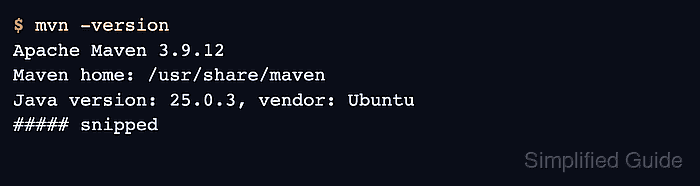
- Verify Maven and the Java runtime it will use.
$ mvn -version
Apache Maven 3.9.12
Maven home: /usr/share/maven
Java version: 25.0.3, vendor: Ubuntu
##### snipped
The exact Maven and OpenJDK versions depend on the Ubuntu release and enabled repositories. The decisive result is that mvn runs and reports the Java runtime Maven will launch builds with.