How to create a systemd service for a Java app
A Java application that runs from a shell can still fail at boot, restart under the wrong user, or disappear after a session ends unless systemd owns the process. A service unit gives the JAR a fixed command, working directory, restart policy, and boot target so the application is managed like the rest of the Linux host.
The unit file connects systemd to the Java launcher with an absolute path to /usr/bin/java, the final JAR path, and any JVM options that must always apply. The service user owns the application directory, while systemd starts the process, tracks the main Java PID, and sends standard output and standard error to the journal.
These steps assume the JAR already works on the target host and that Java is installed from the system's current packages or another managed runtime path. The example uses a Linux host with current systemd syntax, including Type=exec, which makes start failures surface when the Java binary or service user cannot be invoked.
Related: How to run a JAR file on Linux
Related: How to troubleshoot a Java systemd service
Related: How to install JDK on Ubuntu
Steps to create a systemd service for a Java app:
- Create a dedicated service account for the Java application.
$ sudo useradd --system --home /opt/orders --shell /usr/sbin/nologin orders
Use an existing locked-down application account if your host already has one. Avoid running application services as root unless the JAR truly needs host-level privileges.
- Create the application directory and copy the JAR into its final path.
$ sudo install -d -o orders -g orders -m 0755 /opt/orders
$ sudo install -o orders -g orders -m 0644 target/orders.jar /opt/orders/orders.jar
Replace target/orders.jar with the JAR produced by your build. Keep the systemd unit pointed at the final path under /opt or another deployment directory, not at a developer workspace or temporary build directory.
- Create the systemd unit file.
- /etc/systemd/system/orders.service
[Unit]
Description=Orders Java service
After=network-online.target
Wants=network-online.target

[Service]
Type=exec
User=orders
Group=orders
WorkingDirectory=/opt/orders
ExecStart=/usr/bin/java -Xms16m -Xmx64m -jar /opt/orders/orders.jar
Restart=on-failure
RestartSec=5
StandardOutput=journal
StandardError=journal

[Install]
WantedBy=multi-user.target
WorkingDirectory matters when the Java application reads relative config files, templates, or local data. Replace the sample -Xms16m and -Xmx64m values with heap settings that match your application, and remove network-online.target only when the app does not need the network during startup.
Do not place database passwords, API tokens, or private keys directly in a world-readable unit file. Use a restricted environment file, systemd credentials, or the application's secret manager when sensitive values are required.
- Validate the unit syntax before loading it into the system manager.
$ sudo systemd-analyze verify /etc/systemd/system/orders.service
A clean systemd-analyze verify run returns no output. Fix any reported line number or directive warning before starting the service.
- Reload systemd and start the service immediately while also enabling it for boot.
$ sudo systemctl daemon-reload
$ sudo systemctl enable --now orders.service
Created symlink '/etc/systemd/system/multi-user.target.wants/orders.service' -> '/etc/systemd/system/orders.service'.
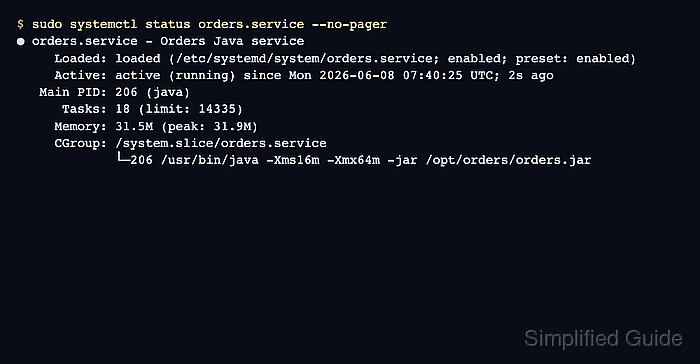
- Confirm that systemd sees the Java process as active.
$ sudo systemctl status orders.service --no-pager
● orders.service - Orders Java service
     Loaded: loaded (/etc/systemd/system/orders.service; enabled; preset: enabled)
     Active: active (running) since Mon 2026-06-08 07:40:25 UTC; 2s ago
   Main PID: 206 (java)
      Tasks: 18 (limit: 14335)
     Memory: 31.5M (peak: 31.9M)
     CGroup: /system.slice/orders.service
             └─206 /usr/bin/java -Xms16m -Xmx64m -jar /opt/orders/orders.jar
The command line under CGroup should match the JAR path and JVM options in the unit. If the service exits or restarts, inspect the failure path before enabling it in production. Related: How to troubleshoot a Java systemd service
- Check the service journal for the Java application's startup line.
$ sudo journalctl -u orders.service --no-pager
Jun 08 07:35:54 app-host systemd[1]: Started orders.service - Orders Java service.
Jun 08 07:35:54 app-host java[207]: orders started on port 8080
Use the real startup message from your application as the success signal. If the journal only shows JVM errors, bad paths, or missing environment values, fix the unit or application config and restart the service with sudo systemctl restart orders.service.