How to create thumbnails in batch with ImageMagick
A directory of product photos, gallery images, or release screenshots often needs matching thumbnails before it can be uploaded or handed to another workflow. ImageMagick can process the whole batch from a shell and write the smaller files to a separate directory so the originals remain available.
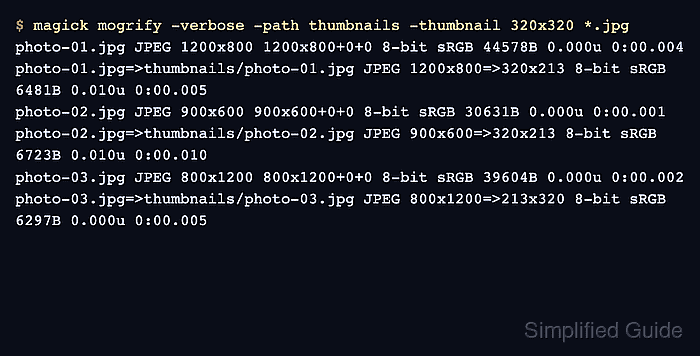
The safest batch pattern is to create the output directory first and run magick mogrify with -path. Plain mogrify normally rewrites each matched file, while -path sends the generated thumbnails to another directory and preserves the source filenames.
A *.jpg glob and a 320x320 thumbnail box keep the first run narrow enough to review before applying the same pattern to a larger image set. Landscape files fit by width, portrait files fit by height, and ImageMagick preserves proportions instead of stretching images into a square.
Related: Resize an image with ImageMagick
Related: Compress an image with ImageMagick
Related: Identify image metadata with ImageMagick
Steps to create thumbnails in batch with ImageMagick:
- Open a terminal in the directory that contains the source images.
- Create a separate output directory for the thumbnail batch.
$ mkdir -p thumbnails
magick mogrify writes into the directory named by -path. Create it first so a missing directory does not stop the batch.
- Check the source images that match the batch glob.
$ magick identify -format '%f %m %wx%h\n' *.jpg
photo-01.jpg JPEG 1200x800
photo-02.jpg JPEG 900x600
photo-03.jpg JPEG 800x1200
Use one glob that matches the files you intend to process. Repeat the command with another pattern, such as *.png, only when those files need the same thumbnail geometry.
- Create thumbnails in the output directory.
$ magick mogrify -verbose -path thumbnails -thumbnail 320x320 *.jpg
photo-01.jpg JPEG 1200x800 1200x800+0+0 8-bit sRGB 44578B 0.000u 0:00.004
photo-01.jpg=>thumbnails/photo-01.jpg JPEG 1200x800=>320x213 8-bit sRGB 6481B 0.010u 0:00.005
photo-02.jpg JPEG 900x600 900x600+0+0 8-bit sRGB 30631B 0.000u 0:00.001
photo-02.jpg=>thumbnails/photo-02.jpg JPEG 900x600=>320x213 8-bit sRGB 6723B 0.010u 0:00.010
photo-03.jpg JPEG 800x1200 800x1200+0+0 8-bit sRGB 39604B 0.000u 0:00.002
photo-03.jpg=>thumbnails/photo-03.jpg JPEG 800x1200=>213x320 8-bit sRGB 6297B 0.000u 0:00.005
The -verbose output shows each input file and the matching file written under thumbnails/. Remove -verbose after the command is proven and the batch becomes routine.
- Verify the thumbnail dimensions from the output directory.
$ magick identify -format '%f %m %wx%h\n' thumbnails/*.jpg
photo-01.jpg JPEG 320x213
photo-02.jpg JPEG 320x213
photo-03.jpg JPEG 213x320
Each thumbnail should fit within the 320x320 box. A portrait image reports 213x320 because the height reaches the box limit first.
- Open one thumbnail before replacing gallery, catalog, or site references.
Keep the originals outside the thumbnail directory. Running magick mogrify without -path can overwrite the files matched by the glob.