How to resize an image with ImageMagick
Image files often need smaller pixel dimensions before they fit a web page, email attachment, CMS field, or release package. ImageMagick can write a resized copy from the command line while leaving the original available for comparison or another export.
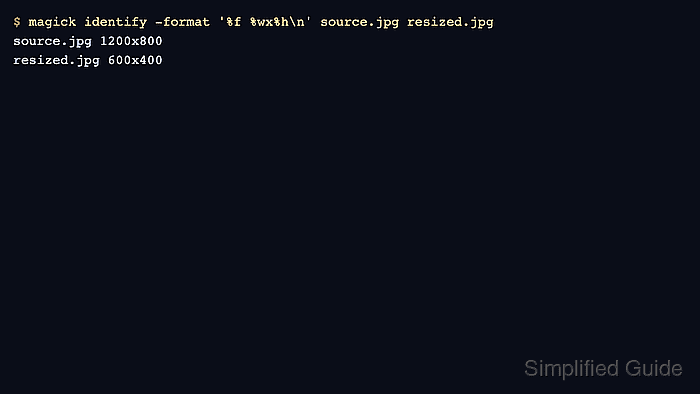
The -resize geometry in the example uses a 600x400 box. When the source has the same 3:2 ratio, the output reports exactly 600x400; if the source ratio differs, ImageMagick preserves proportions and fits the result inside that box instead of stretching it.
Use ImageMagick 7 magick syntax when it is available. Keep the output filename different from the input while checking dimensions and visual quality, and use magick mogrify only for deliberate overwrite batches.
Related: Crop an image with ImageMagick
Related: Compress an image with ImageMagick
Steps to resize an image with ImageMagick:
- Open a terminal in the directory containing the source image.
- Check the source image dimensions before selecting the resize geometry.
$ magick identify -format '%f %m %wx%h\n' source.jpg
source.jpg JPEG 1200x800
Use a geometry that matches the intended destination. A 600x400 resize keeps the image inside a 600-pixel-wide by 400-pixel-tall box while preserving aspect ratio.
- Write a resized copy with -resize.
$ magick source.jpg -resize 600x400 resized.jpg
ImageMagick reads source.jpg, applies the resize operator, and writes resized.jpg as the destination file. The source file remains unchanged because the command names a separate output file.
- Verify both image dimensions.
$ magick identify -format '%f %m %wx%h\n' source.jpg resized.jpg
source.jpg JPEG 1200x800
resized.jpg JPEG 600x400
The resized file should report the target dimensions when the source and target aspect ratios match. If it reports a smaller width or height, the input ratio did not match the target box.
- Open the resized image before replacing an asset reference or sending the file onward.
Use a geometry such as 600x400! only when distortion is acceptable. For a fixed output frame without stretching, resize and then crop or extend the canvas in a separate, explicit workflow.