How to compress an image with ImageMagick
Large JPEG files can slow page loads, email handoffs, and release packages even when the image already has the right pixel dimensions. ImageMagick can write a smaller copy with a lower JPEG quality setting while leaving the original file available for comparison.
The magick command reads the source file, applies output settings, and writes the destination file named at the end of the command. The example below removes extra metadata, writes a progressive JPEG, and uses quality 75 to reduce file size without changing the 1200×800 pixel dimensions.
Compression with JPEG is lossy, so inspect the result before replacing an asset used on a website, in documentation, or in a design handoff. Keep metadata or color profiles when the receiving workflow depends on them, and use a format such as PNG or lossless WebP when transparent pixels or exact flat artwork must be preserved.
Related: Convert images to WebP with ImageMagick
Related: Resize an image with ImageMagick
Steps to compress an image with ImageMagick:
- Identify the source image before changing compression settings.
$ magick identify -format '%f %wx%h %b\n' source.jpg
source.jpg 1200x800 44578B
The dimensions and byte count give a baseline for confirming that compression changed file size without accidentally resizing the image.
- Write a compressed JPEG copy with an explicit quality setting.
$ magick source.jpg -strip -interlace Plane -quality 75 compressed.jpg
-strip removes metadata and profiles, -interlace Plane writes a progressive JPEG, and -quality 75 controls the lossy encoder quality. Skip -strip when the output must retain EXIF, ICC, or other embedded profiles.
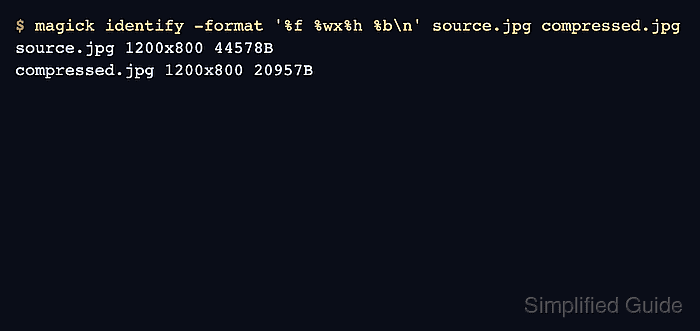
- Confirm that the compressed file is smaller and still has the expected dimensions.
$ magick identify -format '%f %wx%h %b\n' source.jpg compressed.jpg
source.jpg 1200x800 44578B
compressed.jpg 1200x800 20957B
- Open the compressed image and compare visible details against the source before replacing any asset references.
If the output shows blocking, banding, or soft text, raise the -quality value and generate a new copy instead of overwriting the original file.