How to troubleshoot a Grafana panel with no data
A Grafana panel that shows No data usually means the panel query finished but returned no displayable rows for the selected dashboard state. Troubleshooting starts at the panel because the inspector shows the data source request, raw response, row count, and panel data without changing the dashboard first.
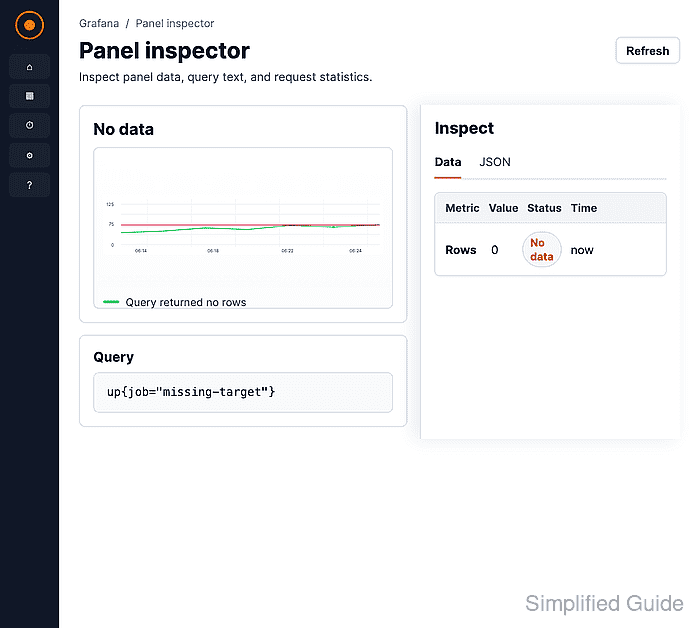
The Inspect view keeps the failure tied to the exact panel, time range, data source, and template variable values that produced the empty result. Use it before rebuilding the panel or changing credentials so the first fix matches the observed signal.
Panel-level inspection fits a query that finishes without an error and still renders No data. Connection, authentication, timeout, or plugin errors should be fixed at the data source first; a data source test or Explore query can prove that Grafana can reach the backend before the panel query is changed.
Related: How to test a Grafana data source
Related: How to use Grafana query inspector
Steps to troubleshoot a Grafana no-data panel:
- Open the dashboard that contains the affected panel.
Keep the dashboard time range and template variable values unchanged while capturing the first symptom, because changing them before inspection can hide the failure signal.
- Hover over the panel title and open the panel menu.
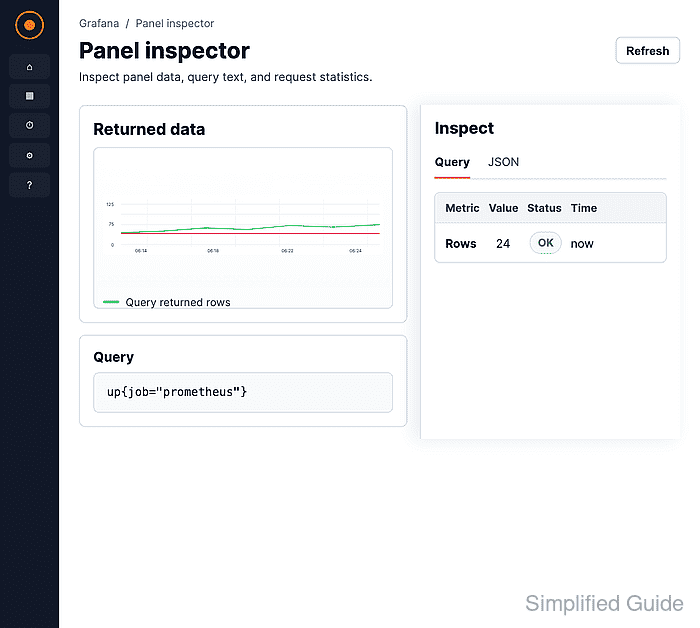
- Select Inspect → Data for the affected panel.
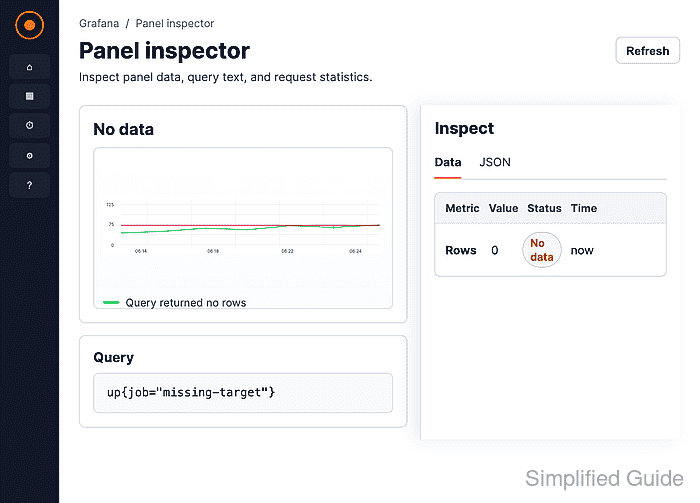
If the Data tab shows rows while the panel still says No data, inspect Transformations, field options, value mappings, and the visualization's No value setting before changing the backend query.
- Open the Stats tab and check Total number rows.
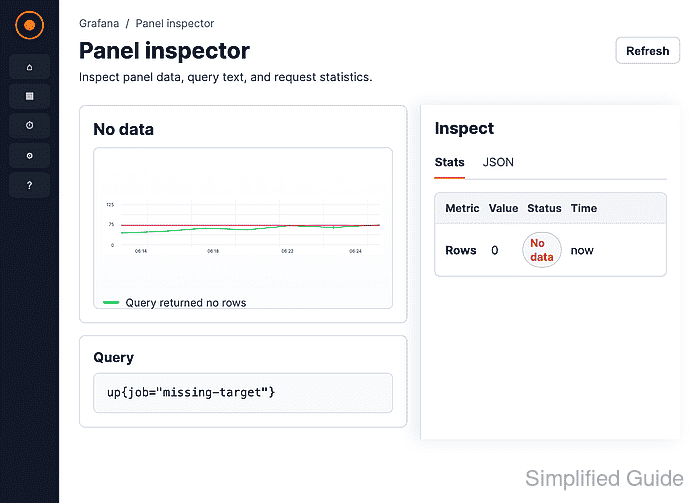
A zero row count means Grafana received an empty result set. A nonzero row count points to panel rendering, transformations, or field selection instead of the backend query.
- Open the Query tab and click the inspector refresh button.
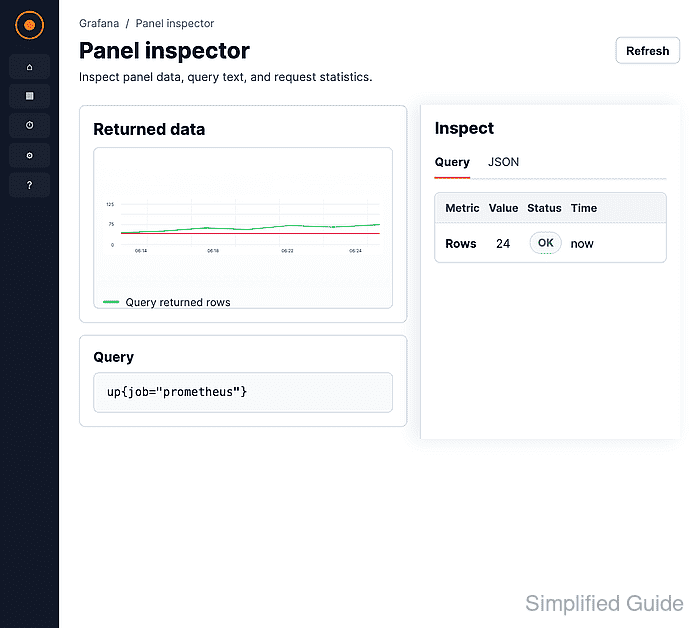
Grafana collects the request and response only after the inspector refreshes the query.
- Review the request data source, query payload, time range, and response.
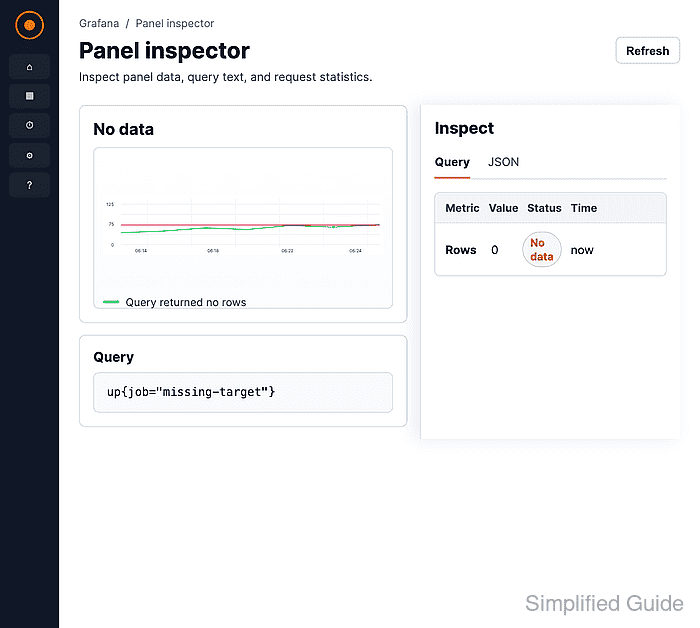
Look for the wrong data source, a variable value that expanded into an empty matcher, a time range outside retention, or an empty response from the backend.
- Edit the panel query layer identified by the inspector.
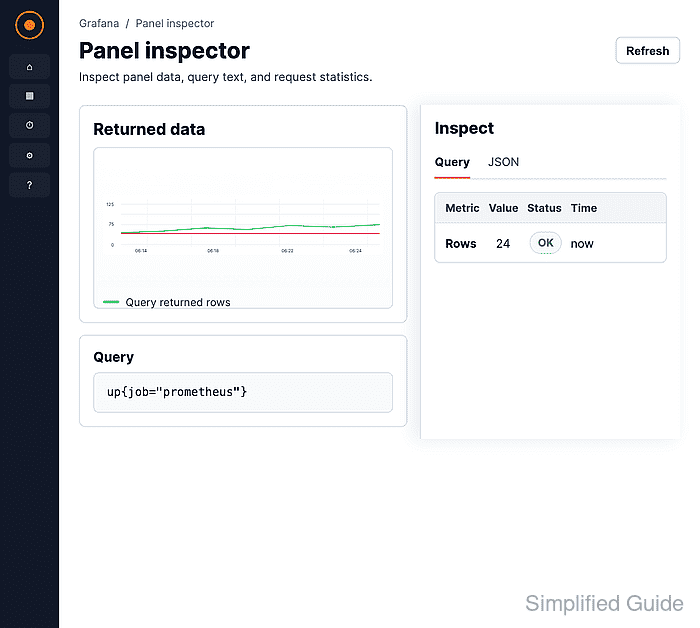
Change one layer at a time, such as the panel data source, query text, template variable value, or dashboard time range, so the next refresh shows which change restored rows.
- Refresh the panel preview after the query change.
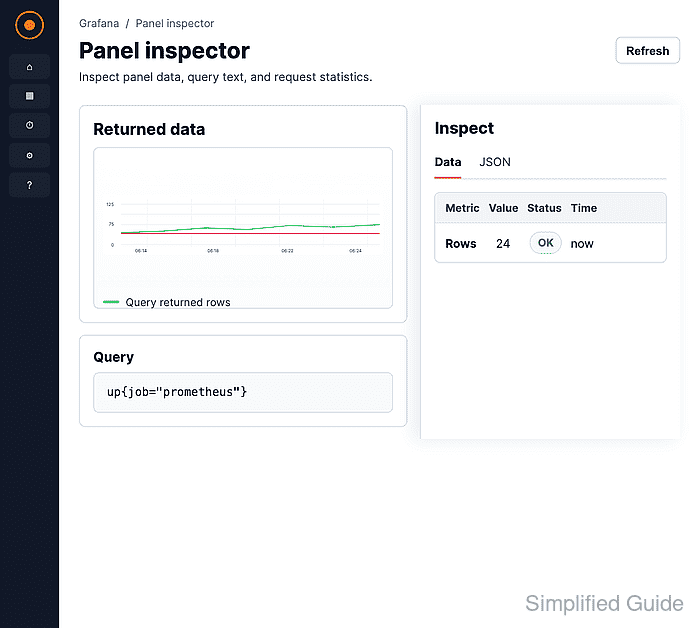
- Reopen Inspect → Data and confirm that rows now appear.
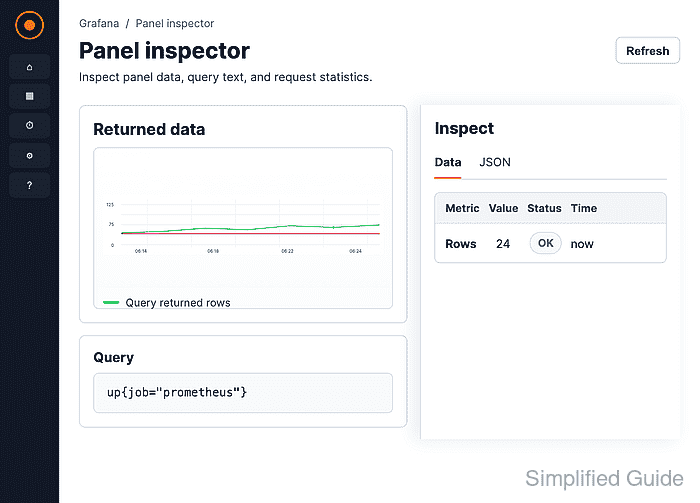
- Check Inspect → Stats and confirm that Total number rows is greater than zero.
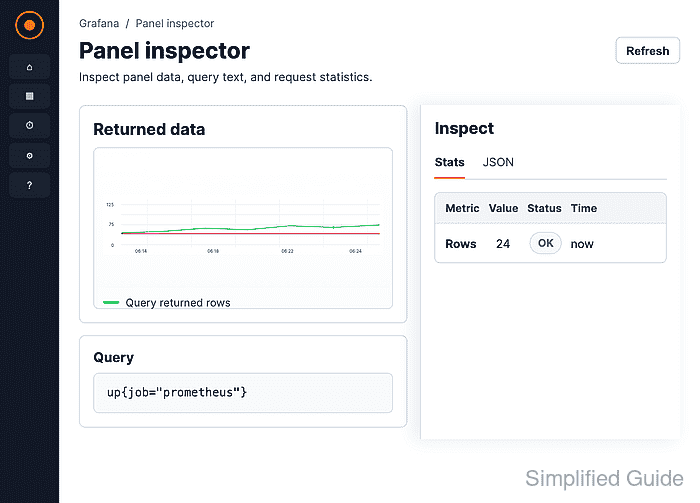
If the row count is still zero, return to the query request and test the same data source in Explore or on the data source settings page before editing visualization options.