How to clone a Git repository
Cloning a Git repository creates a local working copy from an existing project so the files, commit history, and branch tracking are ready for local work. A useful clone check confirms that the expected files arrived, origin points back to the source repository, and the checked-out branch tracks its remote branch.
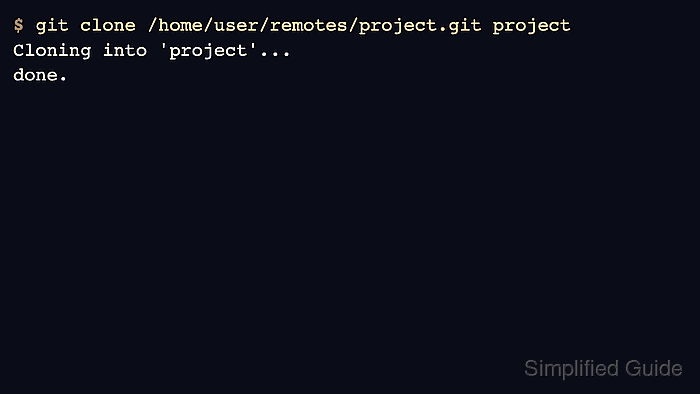
git clone creates a new directory, copies the repository objects, checks out the source repository's active branch, and records remote-tracking refs under origin. The optional directory argument controls the local checkout name, which is helpful when the repository URL ends in a long or generic project name.
Use the repository URL supplied by the hosting service, SSH server, or local bare repository. HTTPS URLs may prompt for a token or credential helper, SSH URLs require a working key, and the destination directory must be empty or absent before the clone starts.
Related: Create a local Git repository
Related: Add origin remote to a Git repository
Related: Change a Git remote URL
Steps to clone a Git repository:
- Open a terminal in the parent directory where the new checkout should be created.
- Clone the repository and give the checkout a local directory name.
$ git clone /home/user/remotes/project.git project
Cloning into 'project'...
done.
Replace the sample path with the HTTPS, SSH, or local bare-repository URL for the project. Omit the final directory name when the default repository directory name is acceptable.
- Enter the cloned repository.
$ cd project
- Check that the expected project files are present.
$ ls
README.md
docs
- Confirm that origin points to the repository that was cloned.
$ git remote -v
origin	/home/user/remotes/project.git (fetch)
origin	/home/user/remotes/project.git (push)
A normal clone creates origin automatically. Change the remote URL only when the saved source is wrong or the project moved.
- Confirm that the checkout is clean and the local branch tracks the remote branch.
$ git status -sb
## main...origin/main
The main...origin/main line means the local main branch is connected to origin/main. Extra lines below it would show local changes, untracked files, or divergence that should be reviewed before starting work.