How to change a Git remote URL
After a repository move, host rename, project transfer, or HTTPS-to-SSH switch, an existing clone can keep pointing at the old remote even though its branches and history are still usable. Change the Git remote URL so fetch and push commands contact the new repository through the same remote name, usually origin.
git remote set-url changes the URL stored for an existing remote name. The remote name and branch tracking stay in place, so a branch that already tracks origin/main still tracks origin/main; only the address behind origin changes.
Confirm the new URL before using it for a push. Git can save an unreachable or wrong repository URL, so use git remote get-url and a read-only remote query to prove the new target before sending commits.
Related: Add origin remote to a Git repository
Related: Clone a Git repository
Steps to change a Git remote URL:
- Open a terminal inside the existing repository clone.
- List the current remote URLs.
$ git remote -v
origin  https://git.example.net/old-team/project.git (fetch)
origin  https://git.example.net/old-team/project.git (push)
If the remote name is not origin, use the listed remote name in the later commands.
- Change origin to the new repository URL.
$ git remote set-url origin https://git.example.net/team/project.git
Git normally prints no output when the URL change succeeds.
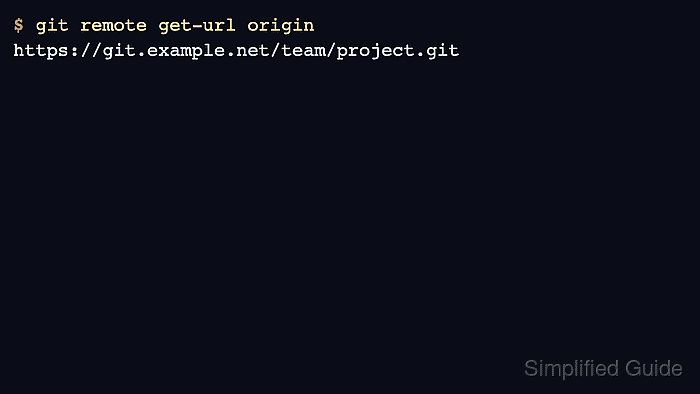
- Confirm the stored fetch URL.
$ git remote get-url origin
https://git.example.net/team/project.git
- Check the fetch and push URLs shown for the remote.
$ git remote -v
origin  https://git.example.net/team/project.git (fetch)
origin  https://git.example.net/team/project.git (push)
If the repository uses a separate push URL, change it with git remote set-url --push origin <new-push-url> and confirm it with git remote get-url --push origin.
- Query the new remote for the branch that should exist there.
$ git ls-remote --heads origin main
3084bc903a1a540aab0053422813fe07bab49a39	refs/heads/main
If this command fails, returns the wrong branch, or asks for unexpected credentials, leave push operations paused until the URL, repository permissions, and target project are confirmed.