How to add origin remote to a Git repository
A local Git repository can have commits but no named destination for sharing them. Adding the origin remote records the repository URL that Git should use for later fetches and pushes, so future commands do not have to repeat the full remote address.
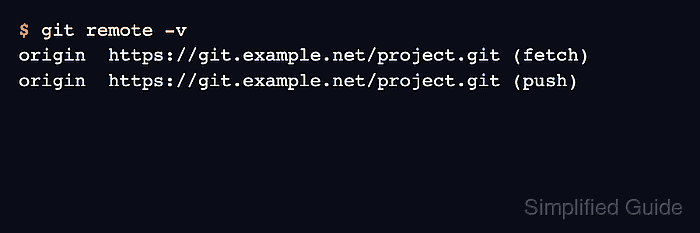
The remote name origin is only a convention, but many hosting instructions and branch-tracking defaults assume it. The entry stores both a fetch URL and a push URL unless you deliberately configure them separately, and git remote -v shows those values before any branch is uploaded.
The safest starting point is a local branch that is ready to publish and a remote URL that belongs to the same project. If origin already exists, change its URL instead of adding another remote; if the remote already contains commits, fetch and reconcile that history before pushing.
Related: Create a local Git repository
Related: Change a Git remote URL
Related: Set upstream tracking for a Git branch
Steps to add origin remote to a Git repository:
- Open a terminal in the local repository that needs a remote.
- Confirm the current branch before adding the remote.
$ git status -sb
## main
The branch name matters for the later push. Replace main in the push command with the branch shown in this output.
- Check whether any remotes are already configured.
$ git remote -v
No output means the repository has no saved remotes. If origin already appears, update that remote instead of adding it again.
- Add the remote URL as origin.
$ git remote add origin https://git.example.net/project.git
Replace the sample URL with the HTTPS, SSH, or local bare-repository URL supplied by your Git hosting service.
- List the saved remote URLs.
$ git remote -v
origin	https://git.example.net/project.git (fetch)
origin	https://git.example.net/project.git (push)
The fetch and push URLs normally match. Use separate remotes instead of split fetch and push URLs when you fetch from an upstream project but push to a fork.
- Push the current branch and set upstream tracking.
$ git push --set-upstream origin main
To https://git.example.net/project.git
 * [new branch]      main -> main
branch 'main' set up to track 'origin/main'.
If the remote already contains commits, fetch from origin and resolve the history difference before pushing your local branch.
- Confirm that the branch now tracks the remote branch.
$ git status -sb
## main...origin/main