How to list effective Git configuration
Git configuration checks matter when commits use the wrong identity, pulls rebase unexpectedly, an alias expands differently in one repository, or an editor setting works in one checkout but not another. Listing the active values with their source files shows whether the setting comes from the user profile, the repository, the worktree, or a command-scoped override.
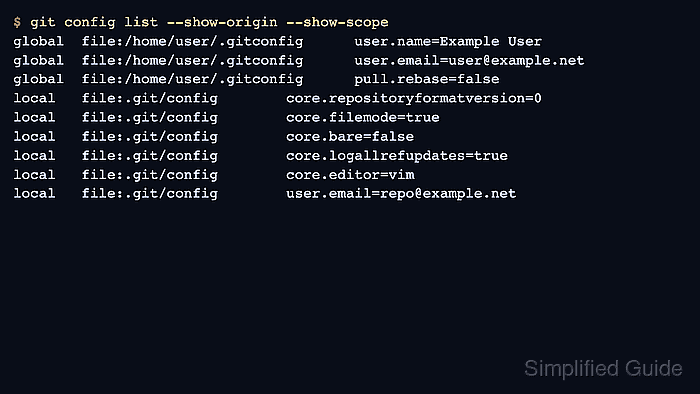
Git reads configuration from several layers, including system, global, local repository, worktree, and command scopes. A local value in .git/config can override a global value in ~/.gitconfig for the same key, so a full listing exposes duplicate keys while a focused query confirms the value Git will actually use for one setting.
Current Git documentation uses the subcommand form, so the steps use git config list and git config get. Older installations that do not recognize those forms can use the legacy git config --list and git config --get modes with the same display options.
Related: How to configure Git user name and email
Related: How to configure a Git alias
Steps to list effective Git configuration:
- Open a terminal inside the repository where the setting is being checked.
Outside a Git repository, Git cannot read the local .git/config layer, so repository-specific values will not appear.
- List every visible configuration value with its origin file and scope.
$ git config list --show-origin --show-scope
global	file:/home/user/.gitconfig	user.name=Example User
global	file:/home/user/.gitconfig	user.email=user@example.net
global	file:/home/user/.gitconfig	pull.rebase=false
local	file:.git/config	core.repositoryformatversion=0
local	file:.git/config	core.filemode=true
local	file:.git/config	core.bare=false
local	file:.git/config	core.logallrefupdates=true
local	file:.git/config	core.editor=vim
local	file:.git/config	user.email=repo@example.net
--show-origin prints the source file or origin type. --show-scope prints the layer, such as global or local.
- Read duplicate keys by scope when the same setting appears more than once.
In the example above, user.email appears in both global and local scopes, which means the repository has its own email setting.
- Query one key to see the value Git will use in the current repository.
$ git config get --show-origin --show-scope user.email
local	file:.git/config	repo@example.net
A focused query avoids choosing the wrong duplicate from the full list when a key appears in more than one scope.
- Show every value for an overridden key when the source of the conflict needs review.
$ git config get --all --show-origin --show-scope user.email
global	file:/home/user/.gitconfig	user@example.net
local	file:.git/config	repo@example.net
- Verify the effective value again after changing or removing a configuration value.
$ git config get --show-origin --show-scope user.email
global	file:/home/user/.gitconfig	user@example.net
If the command returns no value, the key is not set in the scopes Git searched from the current directory.