How to reset built-in user passwords in Elasticsearch
Rotating built-in Elasticsearch passwords limits the time that leaked credentials remain useful and helps restore control quickly after staff changes, secret exposure, or component migrations. Reserved accounts such as elastic and kibana_system already exist on secured clusters, so keeping their passwords current is part of normal cluster hygiene.
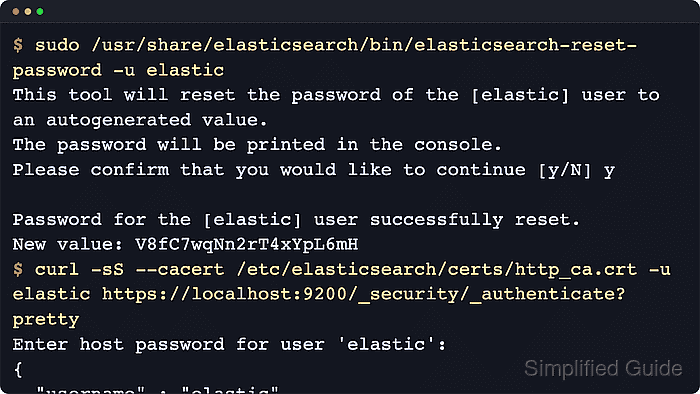
Built-in users are reserved accounts stored in the .security index rather than in the native user list. On self-managed clusters, the elasticsearch-reset-password utility reads the local node's security and HTTP TLS settings from /etc/elasticsearch/elasticsearch.yml and resets the target built-in user's password. By default it generates a strong password automatically, but it can also prompt for an explicit password with --interactive.
Use the command-line method on self-managed clusters where an operator can run tools on an Elasticsearch node. Current releases create a temporary file-realm user behind the scenes, so the tool cannot run when the file realm is disabled. Package installs commonly protect the local API with HTTPS on port 9200 and place the generated CA certificate at /etc/elasticsearch/certs/http_ca.crt; adjust the verification command if the node uses a different HTTP URL or CA path.
Steps to reset built-in user passwords in Elasticsearch:
- Identify the reserved account that needs rotation.
Common built-in users include elastic, kibana_system, logstash_system, beats_system, apm_system, and remote_monitoring_user. The elastic user is a superuser, while the service users are meant for Elastic components rather than interactive human sign-in.
- Run the password reset tool on an Elasticsearch node for the target built-in user.
$ sudo /usr/share/elasticsearch/bin/elasticsearch-reset-password --username elastic
This tool will reset the password of the [elastic] user to an autogenerated value.
The password will be printed in the console.
Please confirm that you would like to continue [y/N] y

Password for the [elastic] user successfully reset.
New value: <generated-password>
Set ES_PATH_CONF first when the node uses a non-default configuration directory. Use --url when the tool must contact a different local node URL.
- Use interactive mode only when a specific password must be set.
$ sudo /usr/share/elasticsearch/bin/elasticsearch-reset-password --interactive --username kibana_system
The utility creates a temporary file-realm user to submit the password-change request. If the file realm is disabled in /etc/elasticsearch/elasticsearch.yml or a custom config path, use Kibana or the password-change API instead.
- Save the new secret immediately and update every service or client that authenticates with that account.
Rotating kibana_system, logstash_system, beats_system, apm_system, or remote_monitoring_user without updating their stored credentials can break monitoring, ingestion, or Kibana background tasks until the new password is applied.
- Verify that the new password can authenticate to the secured HTTP API.
$ curl --silent --show-error --cacert /etc/elasticsearch/certs/http_ca.crt \
  --user elastic https://localhost:9200/_security/_authenticate?pretty
Enter host password for user 'elastic':
{
  "username" : "elastic",
  "roles" : [
    "superuser"
  ],
  "full_name" : null,
  "email" : null,
  "metadata" : {
    "_reserved" : true
  },
  "enabled" : true,
  "authentication_realm" : {
    "name" : "reserved",
    "type" : "reserved"
  },
  "lookup_realm" : {
    "name" : "reserved",
    "type" : "reserved"
  },
  "authentication_type" : "realm"
}
A successful response confirms both the new credential and the HTTPS trust path. When the cluster uses a different CA file, replace the CA path. If HTTP TLS was intentionally disabled, switch the URL to http://localhost:9200 and drop --cacert.
- Reset additional built-in users with the same command pattern when their stored secrets also need rotation.
$ sudo /usr/share/elasticsearch/bin/elasticsearch-reset-password --interactive --username remote_monitoring_user
Component account rotation is not complete until the matching Kibana, Logstash, Beats, APM Server, or monitoring configuration has been updated and the affected component can reconnect.