How to install Elasticsearch on Ubuntu or Debian
Installing Elasticsearch on Ubuntu or Debian from Elastic's Debian package gives a server a self-managed search node with the packaged JVM, systemd service, and secured HTTP API. The package route is the supported APT path for Debian-based hosts when the node should receive updates through the operating system package manager.
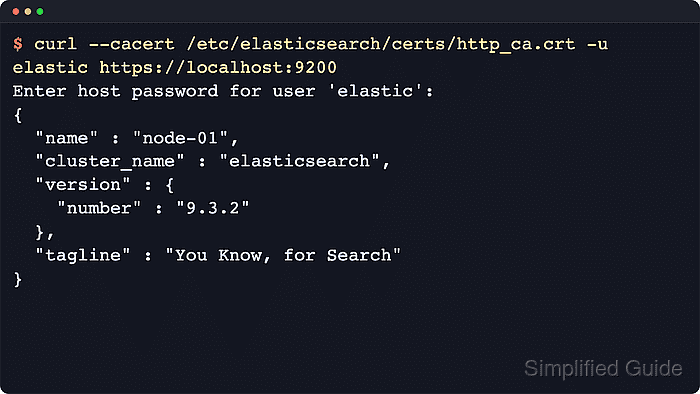
Elastic's current package instructions use the 9.x APT repository and a dedicated signing-key keyring. The package enables authentication and TLS during auto-configuration, so local checks should use HTTPS on port 9200 and trust the generated HTTP CA certificate instead of plain HTTP.
Confirm vm.max_map_count before startup because Elastic expects at least 1048576 for mmap-backed indexes. Keep the first install scoped to a single local node unless cluster formation is the immediate job, because exposing transport networking or joining other nodes adds discovery, certificate, and production bootstrap settings.
Steps to install Elasticsearch on Ubuntu or Debian:
- Open a terminal with sudo privileges.
- Refresh the package index.
$ sudo apt-get update
- Install the repository helper packages.
$ sudo apt-get install wget gnupg ca-certificates apt-transport-https
apt-transport-https is already built into recent Ubuntu releases, but keeping it in the package list covers older or minimal Debian hosts.
- Import the Elasticsearch package signing key into the APT keyring.
$ wget -qO - https://artifacts.elastic.co/GPG-KEY-elasticsearch | sudo gpg --dearmor -o /usr/share/keyrings/elasticsearch-keyring.gpg
No output indicates the keyring file was written successfully.
- Save the official Elasticsearch APT repository definition.
$ echo "deb [signed-by=/usr/share/keyrings/elasticsearch-keyring.gpg] https://artifacts.elastic.co/packages/9.x/apt stable main" | sudo tee /etc/apt/sources.list.d/elastic-9.x.list
deb [signed-by=/usr/share/keyrings/elasticsearch-keyring.gpg] https://artifacts.elastic.co/packages/9.x/apt stable main
- Refresh the package index again.
$ sudo apt-get update
Get:1 https://artifacts.elastic.co/packages/9.x/apt stable InRelease [3249 B]
Get:2 https://artifacts.elastic.co/packages/9.x/apt stable/main arm64 Packages [54.9 kB]
##### snipped #####
Reading package lists... Done
The architecture label may show amd64, arm64, or another supported architecture for the host.
- Install the Elasticsearch package.
$ sudo apt-get install elasticsearch
##### snipped #####
Setting up elasticsearch (9.4.2) ...
--------------------------- Security autoconfiguration information ------------------------------
Authentication and authorization are enabled.
TLS for the transport and HTTP layers is enabled and configured.
The generated password for the elastic built-in superuser is : <generated-elastic-password>
Store the generated elastic password securely if the install transaction prints one. If it is lost or not printed, reset it after the service starts.
- Reload the systemd manager configuration.
$ sudo systemctl daemon-reload
Elastic's Debian package instructions run this before enabling the service.
- Check the effective vm.max_map_count value.
$ sysctl vm.max_map_count
vm.max_map_count = 1048576
Values below 1048576 should be raised before starting Elasticsearch.
- Persist the recommended vm.max_map_count value when the check reports a lower value.
$ echo "vm.max_map_count=1048576" | sudo tee /etc/sysctl.d/99-elasticsearch.conf
vm.max_map_count=1048576
- Reload sysctl settings when a sysctl file was added.
$ sudo sysctl --system
##### snipped #####
* Applying /etc/sysctl.d/99-elasticsearch.conf
- Enable Elasticsearch at boot and start it now.
$ sudo systemctl enable --now elasticsearch.service
Created symlink /etc/systemd/system/multi-user.target.wants/elasticsearch.service -> /usr/lib/systemd/system/elasticsearch.service.
- Confirm that the service is active.
$ sudo systemctl is-active elasticsearch.service
active
When the node does not start cleanly, review /var/log/elasticsearch/elasticsearch.log for the application startup error.
Related: How to manage the Elasticsearch service with systemctl in Linux - Reset the built-in elastic password when no current password is available.
$ sudo /usr/share/elasticsearch/bin/elasticsearch-reset-password --username elastic --auto --batch
Password for the [elastic] user successfully reset.
New value: <generated-elastic-password>
Store the generated password securely because the elastic user has full cluster access.
- Test the secured HTTP endpoint.
$ curl --cacert /etc/elasticsearch/certs/http_ca.crt -u elastic https://localhost:9200/
Enter host password for user 'elastic':
{
  "name" : "node-01",
  "cluster_name" : "elasticsearch",
  "version" : {
    "number" : "9.4.2"
  },
  "tagline" : "You Know, for Search"
}
Default self-managed package installs use HTTPS on port 9200, so plain HTTP requests fail unless security has been reconfigured.