How to back up and restore a Docker volume
Backing up a Docker volume is only useful when the same data can be restored into a replacement volume and mounted successfully afterward. A practical backup workflow should leave you with a portable archive plus a tested restore path, not just a tar file that has never been unpacked.
This example uses a named volume, two stopped helper containers, and Docker's current --volumes-from plus tar pattern to copy the data out and then load it into a fresh target volume. The helper image is Ubuntu 24.04 so the restore step can use GNU tar with --strip-components=1 while staying aligned with the current Docker volume backup documentation.
Write-heavy services such as databases should be stopped or otherwise quiesced before the archive is created, because a live tar of changing files can capture an inconsistent state. Restore into a new or intentionally emptied target volume, verify the files from a clean container mount, and only then point the real application back at the recovered data.
Steps to back up and restore a Docker volume:
- Create a stopped helper container that mounts the source volume.
$ docker container create --name app-data-source --mount source=app-data,target=/data ubuntu:24.04 true
Replace app-data with your real source volume name. If the original application container still mounts that volume, you can use that container name with --volumes-from instead of creating a helper container. Related: How to inspect container details in Docker
- Run the backup container and write the archive into the current host directory.
$ docker run --rm --volumes-from app-data-source -v "$PWD":/backup ubuntu:24.04 tar cvf /backup/app-data.tar /data
tar: Removing leading `/' from member names
/data/
/data/release.txt
/data/config/
/data/config/app.env
The archive keeps the volume's top-level /data path, which is why the restore step removes one leading path component later.
Stop the real workload or freeze writes before this step when the source volume contains databases or other frequently changing files.
- List the archive contents before restoring so the path layout is explicit.
$ tar tf app-data.tar
data/
data/release.txt
data/config/
data/config/app.env
This quick check confirms that the tar file exists on the host and that the restore command should remove the leading data directory name with --strip-components=1.
- Create the target volume that will receive the restore test.
$ docker volume create app-data-restored
app-data-restored
- Create a stopped helper container that mounts the target volume.
$ docker container create --name app-data-restore --mount source=app-data-restored,target=/data ubuntu:24.04 true
The restore command writes into the target volume through this neutral mount point without starting the real application yet.
- Extract the backup archive into the target volume.
$ docker run --rm --volumes-from app-data-restore -v "$PWD":/backup ubuntu:24.04 bash -c "cd /data && tar xvf /backup/app-data.tar --strip-components=1"
data/release.txt
data/config/
data/config/app.env
Restore into a fresh or intentionally cleared volume, because untarring over existing files can leave old and new data mixed together.
- Verify the restored files from a clean container mount.
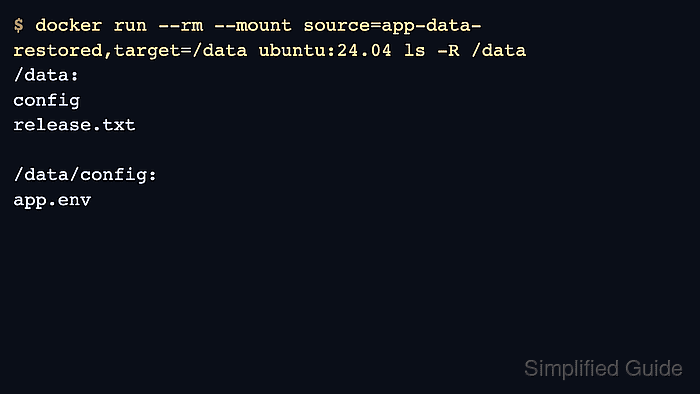
$ docker run --rm --mount source=app-data-restored,target=/data ubuntu:24.04 ls -R /data
/data:
config
release.txt

/data/config:
app.env
When the expected files appear, start the real application against app-data-restored and run the service-specific health check before sending production traffic back to it.