How to build a Debian chroot environment
When a Debian task needs a separate root filesystem but not a full virtual machine, a chroot lets commands run against another Debian tree while still sharing the host kernel. That makes it useful for package tests, repair shells, and controlled command checks where host packages should not be changed.
The debootstrap tool creates the Debian base system in a target directory, writes the initial APT source configuration, and installs enough packages for the selected release to run. Using a release codename such as trixie is clearer than using stable when the directory is meant to be reused after Debian's stable release changes.
A chroot is not a security container, because processes still use the host kernel and privileged bind mounts can expose host devices. Build it under a dedicated path, mount only the pseudo-filesystems needed for the session, and unmount them before deleting or archiving the directory.
Steps to build a Debian chroot environment with debootstrap:
- Open a terminal with sudo privileges.
- Refresh the package index.
$ sudo apt update
- Install debootstrap and certificate support.
$ sudo apt install debootstrap ca-certificates
##### snipped #####
Setting up debootstrap (1.0.141) ...
ca-certificates keeps HTTPS mirrors usable when the host package set is minimal.
- Set the target directory for the chroot.
$ CHROOT=/srv/chroot/debian-trixie
Use a release-specific path so multiple Debian chroots can coexist without relying on what stable points to later.
- Create the target directory.
$ sudo mkdir -p "$CHROOT"
- Bootstrap the Debian base system into the target directory.
$ sudo debootstrap --variant=minbase trixie "$CHROOT" http://deb.debian.org/debian
I: Retrieving InRelease
I: Checking Release signature
I: Valid Release signature
I: Retrieving Packages
##### snipped #####
I: Base system installed successfully.
minbase creates a compact system with required packages and APT. Use –variant=buildd only when the chroot should start with Debian package-build tools.
- Mount /proc inside the chroot.
$ sudo mount -t proc proc "$CHROOT/proc"
- Mount /sys inside the chroot.
$ sudo mount -t sysfs sysfs "$CHROOT/sys"
- Bind-mount /dev inside the chroot.
$ sudo mount --bind /dev "$CHROOT/dev"
The /dev bind mount exposes host device nodes inside the chroot. Use it only while the chroot session is active, and unmount it before cleanup.
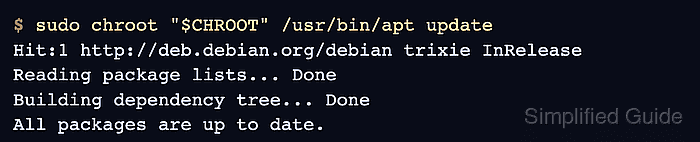
- Verify APT works inside the chroot.
$ sudo chroot "$CHROOT" /usr/bin/apt update
Hit:1 http://deb.debian.org/debian trixie InRelease
Reading package lists... Done
Building dependency tree... Done
All packages are up to date.
- Enter the chroot shell when the verification succeeds.
$ sudo chroot "$CHROOT" /bin/bash
Packages installed from this shell are written under /srv/chroot/debian-trixie, not into the host filesystem.
Related: How to install a package on Debian with apt - Leave the chroot shell when the work is finished.
# exit
exit
- Unmount the chroot filesystems in reverse order.
$ sudo umount "$CHROOT/dev"
$ sudo umount "$CHROOT/sys"
$ sudo umount "$CHROOT/proc"
If an unmount reports that the target is busy, close shells and processes that are still using the chroot before retrying.