How to log in to Codex with device authentication
Device authentication signs Codex in from a remote shell, SSH session, container, or development host where the normal browser callback cannot return a ChatGPT login token to the CLI.
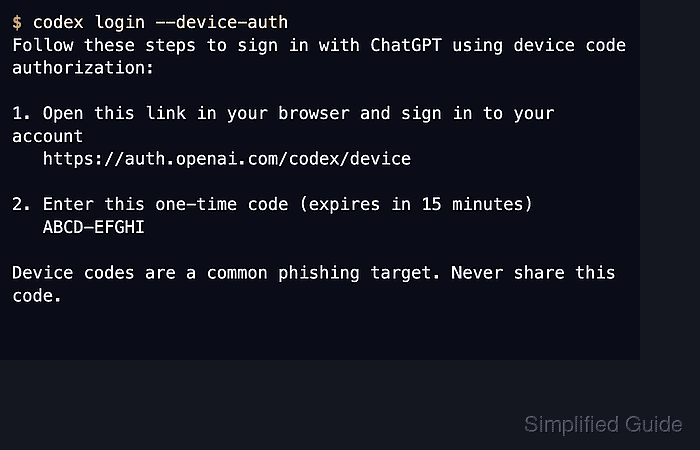
The codex login --device-auth command starts the ChatGPT device-code flow, prints the OpenAI device-login URL, and shows a short one-time code for the browser step. After the browser approves the code, Codex stores the local ChatGPT login for later CLI and IDE extension sessions.
Device-code login is a beta ChatGPT sign-in path, not an API-key login. It must be enabled in personal ChatGPT security settings or by a workspace admin, and Codex can fall back to the normal browser login path when the server does not allow device codes. Cached credentials may live in the operating system credential store or in auth.json under CODEX_HOME, so treat the completed local session like other password-bearing state.
Related: How to check Codex login status
Related: How to log in to Codex with an API key
Related: How to log out of Codex
Steps to log in to Codex with device authentication:
- Check the current login state in the same terminal environment that will run Codex.
$ codex login status
Not logged in
If the status shows an unexpected account or sign-in method, log out before starting the new device-code flow.
Related: How to log out of Codex - Start the device authentication flow.
$ codex login --device-auth

Welcome to Codex [v0.139.0]
OpenAI's command-line coding agent

Follow these steps to sign in with ChatGPT using device code ABCD-EFGHI:

1. Open this link in your browser and sign in to your account
   https://auth.openai.com/codex/device

2. Enter this one-time code (expires in 15 minutes)
   ABCD-EFGHI

Device codes are a common phishing target. Never share this code.
The one-time code is a placeholder. Use the exact URL and code printed in the terminal.
- Open the device-login URL in a browser.
https://auth.openai.com/codex/device
The browser machine does not need Codex installed. It only needs access to the ChatGPT account that should authorize the terminal session.
- Enter the one-time code from the terminal.
The device code authorizes a real local Codex login while it is valid. Do not paste it into tickets, chat, screenshots, or shared notes.
- Finish the ChatGPT sign-in, MFA, SSO, passkey, or workspace selection prompts in the browser.
If the account or workspace has not enabled device-code login, return to the terminal and use the standard codex login browser callback path or an approved fallback.
- Wait for the terminal command to finish after browser approval.
Codex stores the approved ChatGPT session locally, and the CLI and IDE extension share the cached login details until logout or credential expiry.
- Confirm the local Codex profile is authenticated.
$ codex login status
Logged in using ChatGPT
Run the status check in the same shell, container, or remote account that will start the later Codex session.
Related: How to check Codex login status - Start a normal Codex session after the login check succeeds.
$ codex