How to save AWS CLI output to a file
Saving AWS CLI output to a file keeps API responses, inventory snapshots, and one-off checks available after the terminal session ends. A saved file is easier to attach to a ticket, compare across repeated runs, or hand to another tool than copied terminal text.
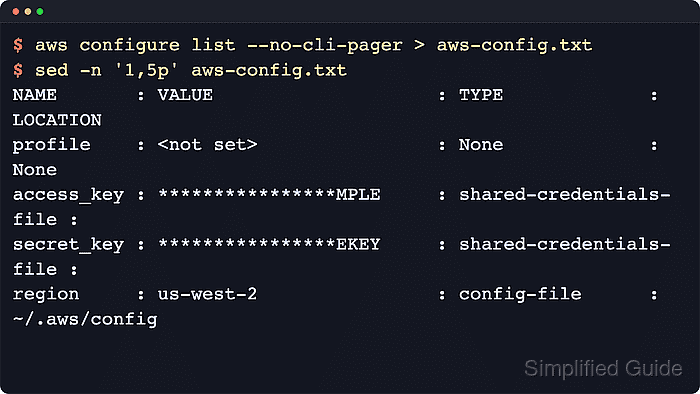
Shell redirection writes stdout to disk after AWS CLI has already chosen the request context, response format, selected fields, and pager behavior. That makes it possible to save a full json response, a narrowed text value, or the same command result to both the screen and a file.
The saved file receives only stdout. Current AWS CLI documentation recommends pairing text output with a query for predictable field ordering and warns that some command output can contain sensitive data. Generated EC2 skeleton output with an explicit region lets the save workflow run from an isolated config without live credentials, while errors remain on stderr unless they are redirected separately.
Related: How to set AWS CLI default output format
Related: How to use JMESPath queries in AWS CLI
Related: How to disable the AWS CLI pager
Tool: JSON to CSV Converter
Steps to save AWS CLI output to a file:
- Save the command output as json when the file should keep the normal structured response body.
$ aws ec2 describe-regions --generate-cli-skeleton output --region us-east-1 --output json --no-cli-pager > regions.json
--region us-east-1 makes the example work even when no default region is configured. Use the region or profile that matches the real command when saving live account output. Generated skeleton output can change across AWS CLI versions.
- Open the saved file and confirm the response body was written.
$ cat regions.json { "Regions": [ { "OptInStatus": "OptInStatus", "Geography": [ { "Name": "Name" } ], "RegionName": "RegionName", "Endpoint": "Endpoint" } ] } - Save only the field list that matters when the next step needs a smaller text file instead of the full response.
$ aws ec2 describe-regions --generate-cli-skeleton output --region us-east-1 --query 'Regions[].RegionName' --output text --no-cli-pager > region-names.txt
Current AWS CLI documentation recommends using --query with --output text so the saved columns and values stay predictable.
- Open the text file and confirm that the filtered value was written.
$ cat region-names.txt
RegionName
- Use tee when the same command result should stay visible in the terminal and be written to a file at the same time.
$ aws ec2 describe-regions --generate-cli-skeleton output --region us-east-1 --query 'Regions[].RegionName' --output text --no-cli-pager | tee region-names-live.txt
RegionName
tee is useful during manual checks because the terminal view and the saved file come from the same command run.
- Redirect stderr to a separate log when the response body and the diagnostic trace must be kept in different files.
$ aws ec2 describe-regions --generate-cli-skeleton output --region us-east-1 --output json --debug --no-cli-pager > regions-debug.json 2> regions-debug.log
Replace > with >> when the response file should grow across repeated runs instead of being replaced.
- Check that the response file and the debug log were written to separate paths.
$ ls -l regions-debug.json regions-debug.log
-rw-r--r-- 1 user user   277 Jun 12 19:05 regions-debug.json
-rw-r--r-- 1 user user 21870 Jun 12 19:05 regions-debug.log
regions-debug.json contains stdout, while regions-debug.log contains the verbose debug trace from stderr.