How to configure multiple AWS CLI profiles
Multiple saved AWS CLI profiles keep account-specific credentials and defaults from crossing over when one workstation, support shell, or automation host works with more than one AWS environment. The profile name becomes the selector for each command or shell session instead of depending on whichever default credentials happen to be present.
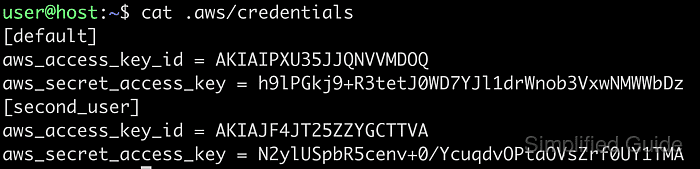
The AWS CLI stores access-key credentials in ~/.aws/credentials and profile defaults such as region and output in ~/.aws/config. Named profiles use [profile engineering] style section names in the config file and [engineering] style section names in the credentials file.
Use access-key profiles only when that credential method is approved for the account. For IAM Identity Center, assumed roles, console sign-in credentials, or credential_process handoffs, create the profile with the matching authentication flow first, then use the same listing, inspection, and selection checks afterward.
Steps to configure multiple AWS CLI profiles:
- Create the first named profile with the AWS CLI configuration wizard.
$ aws configure --profile engineering
Tip: You can deliver temporary credentials to the AWS CLI using your AWS Console
session by running the command 'aws login'.

AWS Access Key ID [None]: AKIAIOSFODNN7EXAMPLE
AWS Secret Access Key [None]: wJalrXUtnFEMI/K7MDENG/bPxRfiCYEXAMPLEKEY
Default region name [None]: us-west-2
Default output format [None]: json

Use a profile name that describes the workload or account, such as engineering, production, billing, or audit.
- Create the next named profile with its own credentials and defaults.
$ aws configure --profile production
Tip: You can deliver temporary credentials to the AWS CLI using your AWS Console
session by running the command 'aws login'.

AWS Access Key ID [None]: AKIAIOSFODNN7EXAMPLE
AWS Secret Access Key [None]: wJalrXUtnFEMI/K7MDENG/bPxRfiCYEXAMPLEKEY
Default region name [None]: us-east-1
Default output format [None]: yaml
Create IAM Identity Center profiles with aws configure sso and assumed-role profiles with role_arn plus source_profile instead of storing long-lived keys for those flows.
Related: How to log in to AWS CLI with IAM Identity Center
Related: How to assume an IAM role using AWS CLI - List the saved profile names.
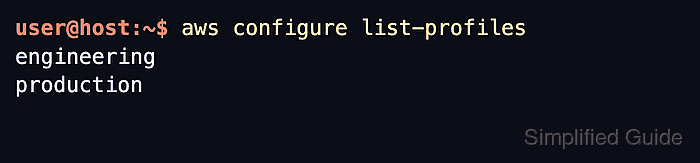
$ aws configure list-profiles
engineering
production
If a [default] profile exists, it appears as default in the same list.
- Inspect one named profile before using it for account-sensitive work.
$ aws configure list --profile production
NAME       : VALUE                    : TYPE             : LOCATION
profile    : production               : manual           : --profile
access_key : ****************MPLE     : shared-credentials-file :
secret_key : ****************EKEY     : shared-credentials-file :
region     : us-east-1                : config-file      : ~/.aws/config
The profile row should show manual from --profile, and the region row should point to the config file for that named profile.
- Run a read-only identity check with the named profile before any command that changes live resources.
$ aws sts get-caller-identity --profile production --query Account --output text
210987654321
The returned account number should match the intended environment before deployments, data copy jobs, or permission changes continue.
Related: How to check the current caller identity in AWS CLI - Export AWS_PROFILE when several commands in the same shell should use one named profile.
$ export AWS_PROFILE=engineering
Unset AWS_ACCESS_KEY_ID, AWS_SECRET_ACCESS_KEY, and AWS_SESSION_TOKEN first if they are already exported, because raw credential variables override file-backed profile credentials.
- Check the shell-level profile selection.
$ aws configure list
NAME       : VALUE                    : TYPE             : LOCATION
profile    : engineering              : env              : ['AWS_PROFILE', 'AWS_DEFAULT_PROFILE']
access_key : ****************MPLE     : shared-credentials-file :
secret_key : ****************EKEY     : shared-credentials-file :
region     : us-west-2                : config-file      : ~/.aws/config
An explicit --profile option on a later command still overrides AWS_PROFILE for that one request.
- Clear the shell-level profile selection when the session should stop using it.
$ unset AWS_PROFILE AWS_DEFAULT_PROFILE
Clearing both variables prevents later commands, new tabs, or copied shell snippets from continuing to use the previous account by mistake.