How to view Hadoop daemon logs
Hadoop daemon logs show why a service started, failed, lost heartbeats, rejected a configuration, or marked local storage unhealthy. The right log depends on the role, host, and user account running the daemon.
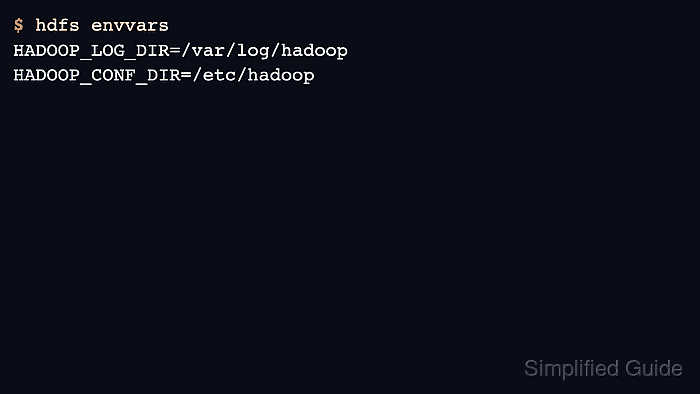
Most Apache Hadoop archive installs write logs under $HADOOP_HOME/logs unless HADOOP_LOG_DIR or service packaging overrides it. Confirm the computed environment before assuming a path.
Use logs to identify the failing component, then pair them with HDFS or YARN status commands. A log line by itself is not enough proof that the service is healthy again.
Steps to view Hadoop daemon logs:
- Print the computed Hadoop environment.
$ hdfs envvars
HADOOP_CONF_DIR=/etc/hadoop
HADOOP_LOG_DIR=/var/log/hadoop
HADOOP_PID_DIR=/run/hadoop
- List available daemon logs.
$ ls -lh /var/log/hadoop
-rw-r--r-- 1 hdfs hadoop  1.4M Jun 17 03:00 hadoop-hdfs-namenode-nn1.log
-rw-r--r-- 1 yarn hadoop  812K Jun 17 03:00 hadoop-yarn-resourcemanager-rm1.log
- Open the NameNode log for HDFS namespace or block-report issues.
$ less /var/log/hadoop/hadoop-hdfs-namenode-nn1.log
- Open the ResourceManager log for YARN scheduling and application-submission issues.
$ less /var/log/hadoop/hadoop-yarn-resourcemanager-rm1.log
- Search for the current application or block error.
$ grep application_1720000000000_0042 /var/log/hadoop/hadoop-yarn-resourcemanager-rm1.log
2026-06-17 03:22:41 INFO rmapp.RMAppImpl: application_1720000000000_0042 final state: SUCCEEDED
- Verify the service state after reviewing logs.
$ yarn application -status application_1720000000000_0042
Final-State : SUCCEEDED
Related: How to view YARN application logs