How to add a Conda environment to Jupyter
A Jupyter notebook can run from a different Python environment than the one that contains the project packages. Registering the Conda environment as a Jupyter kernel gives the kernel picker a named entry that starts Python from that environment instead of from base or another project.
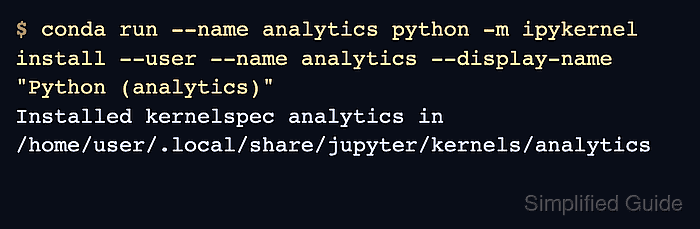
ipykernel supplies the Python kernel process that Jupyter starts behind a notebook, console, or lab session. The registration command writes a kernelspec, which is a small kernel.json file that tells Jupyter which Python executable to launch and which display name to show.
The --user install target writes the kernelspec for the current user account. Run the registration command as the same user who launches JupyterLab or Notebook, choose a simple internal kernel name, and restart any already-open Jupyter session if the new entry does not appear immediately.
Steps to add a Conda environment to Jupyter:
- Choose the environment name, kernel name, and display label.
Conda environment: analytics
Kernel name: analytics
Jupyter display name: Python (analytics)
The kernel name is Jupyter's internal identifier. Use ASCII letters, numbers, hyphens, underscores, or periods.
- Install ipykernel in the target environment.
$ conda install --name analytics ipykernel --yes
Collecting package metadata (repodata.json): done
Solving environment: done
Preparing transaction: done
Verifying transaction: done
Executing transaction: done
Use the same channels that normally supply packages for the environment; add --channel conda-forge when that environment uses conda-forge.
Related: How to install a package with Conda - Register the environment as a user Jupyter kernel.
$ conda run --name analytics python -m ipykernel install --user --name analytics --display-name "Python (analytics)"
Installed kernelspec analytics in /home/user/.local/share/jupyter/kernels/analytics
The command must run with the target environment's Python so the kernelspec points back to that environment. Reusing the same --name replaces the existing kernelspec with that internal name.
- List the Jupyter kernelspecs.
$ conda run --name analytics jupyter kernelspec list
Available kernels:
  python3      /opt/conda/envs/analytics/share/jupyter/kernels/python3
  analytics    /home/user/.local/share/jupyter/kernels/analytics
On macOS or Windows, the user kernelspec path differs. Use the path shown for analytics in the command output.
- Inspect the registered kernel file.
$ cat /home/user/.local/share/jupyter/kernels/analytics/kernel.json
{
 "argv": [
  "/opt/conda/envs/analytics/bin/python",
  "-Xfrozen_modules=off",
  "-m",
  "ipykernel_launcher",
  "-f",
  "{connection_file}"
 ],
 "display_name": "Python (analytics)",
 "language": "python",
 "metadata": {
  "debugger": true,
  "supported_encryption": "curve"
 },
 "kernel_protocol_version": "5.5"
}
The first argv entry should point to the Python executable inside the Conda environment, not to base or another environment.
- Restart JupyterLab or Notebook if the kernel list was already open.
- Select Python (analytics) from the Jupyter kernel picker.
- Run a Python executable check in the notebook.
In [1]: import sys
   ...: sys.executable
Out[1]: '/opt/conda/envs/analytics/bin/python'
If the output points to base or another environment, register the kernel again with conda run --name analytics or activate analytics before running python -m ipykernel install.