How to create a Conda environment
Project work in Conda can break when the interpreter and packages live in base with the package manager itself. A named environment gives the project its own prefix, so package installs and command-line tools stay separate from the shared package manager environment.
conda create builds a new environment from package specs such as python=3.13 and click. Passing --name stores it under Conda's environment directories, while the package names after the environment name become the initial package set.
The solver reads the active channels before creating the environment. If the defaults channels stop with an Anaconda Terms of Service prompt, review the listed channel URLs under your organization's policy or switch to approved channels before rerunning the create command.
Related: How to list Anaconda environments
Related: How to install a package with Conda
Related: How to update a Conda environment from YAML
Steps to create a Conda environment:
- Open a terminal where Conda is available.
- Accept a blocked channel Terms of Service only after review.
$ conda tos accept --override-channels --channel https://repo.anaconda.com/pkgs/main
accepted Terms of Service for https://repo.anaconda.com/pkgs/main
Run this only for channels your organization allows. If Conda lists more than one blocked channel, repeat the command for each listed URL or remove the channel instead.
- Create the environment with the target Python version and initial package set.
$ conda create --name analytics python=3.13 click --yes
Channels:
 - defaults
Platform: linux-aarch64
Collecting package metadata (repodata.json): done
Solving environment: done

## Package Plan ##

  environment location: /opt/conda/envs/analytics

  added / updated specs:
    - click
    - python=3.13

The following NEW packages will be INSTALLED:

  click              pkgs/main/linux-aarch64::click-8.4.1-py313hd43f75c_0
  python             pkgs/main/linux-aarch64::python-3.13.13-h0f2f12d_100_cp313
##### snipped #####
Preparing transaction: done
Verifying transaction: done
Executing transaction: done
Replace analytics with a short project name and add the packages the project needs at first use. Leave off --yes when you want to review the package plan interactively.
- List the Conda environments.
$ conda env list

# conda environments:
#
# * -> active
# + -> frozen
base                     /opt/conda
analytics                /opt/conda/envs/analytics
The new environment should appear with its own path under the Conda installation. An asterisk marks only the currently active environment.
- Activate the new environment.
$ conda activate analytics
(analytics) $
Related: How to activate a Conda environment
- Check the Python interpreter inside the environment.
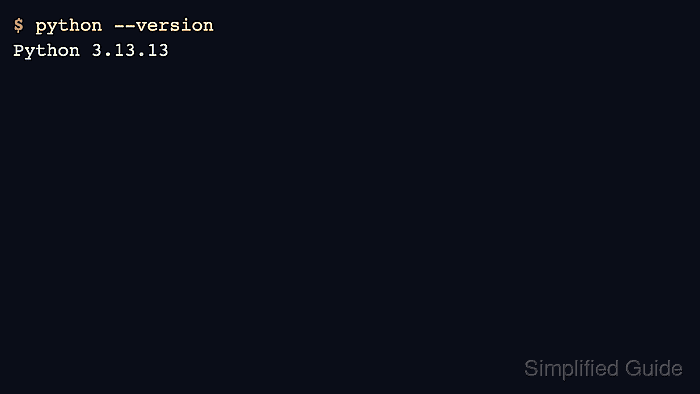
(analytics) $ python --version
Python 3.13.13
- Run an import check for a package installed during creation.
(analytics) $ python -c 'import importlib.metadata as md; print(md.version("click"))'
8.4.1
Replace the sample import with the package, notebook kernel, or project command that proves the environment can run the intended workload.